Module 2
4 min read
Connecting to Data Sources
Learn how to connect Power BI to various data sources
Where Can You Get Data?
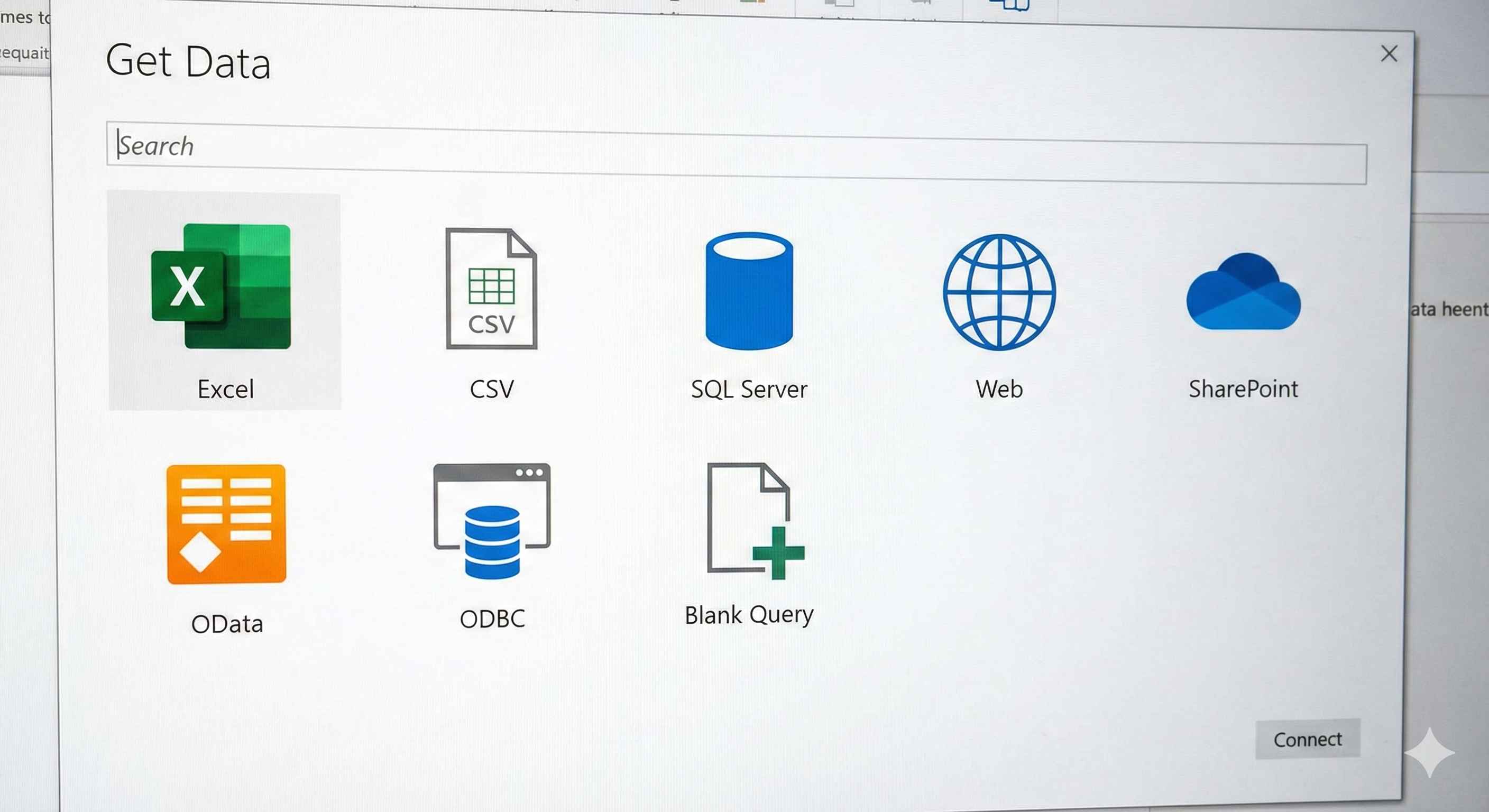
Power BI connects to 100+ sources. Most common ones:
| Type | Examples |
|---|---|
| Files | Excel, CSV, PDF, JSON |
| Databases | SQL Server, MySQL, PostgreSQL |
| Cloud | SharePoint, Salesforce, Google Analytics |
| Web | Any webpage with tables |
How to Connect
All connections start the same way:
- Click Home > Get Data
- Pick your source type
- Browse/enter location
- Select tables
- Click Load
Connect to Excel
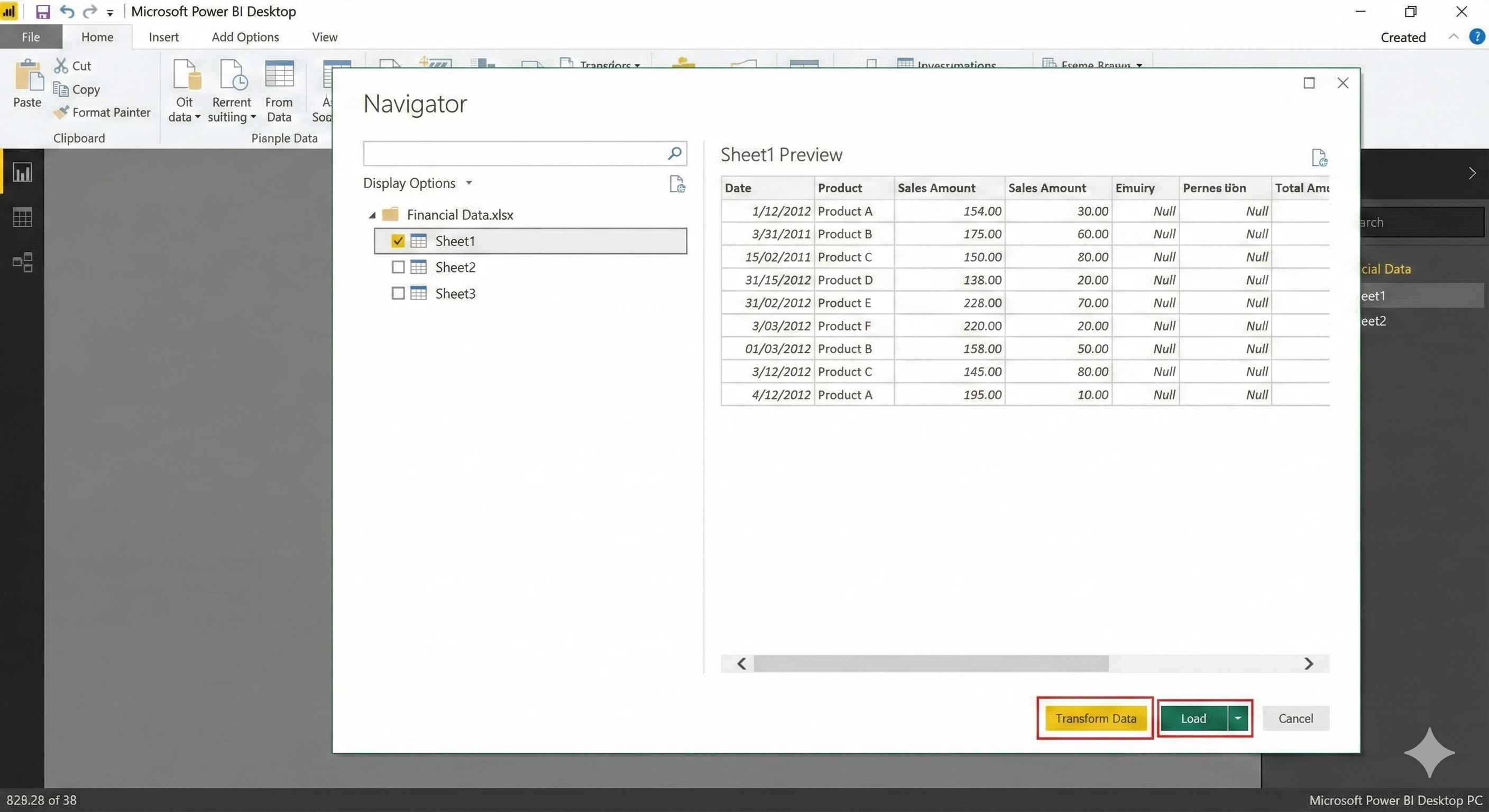
- Get Data > Excel
- Browse to your file
- Check the sheets you want
- Click Load
Connect to CSV
- Get Data > Text/CSV
- Select your file
- Check the preview looks right
- Click Load
Connect to SQL Database
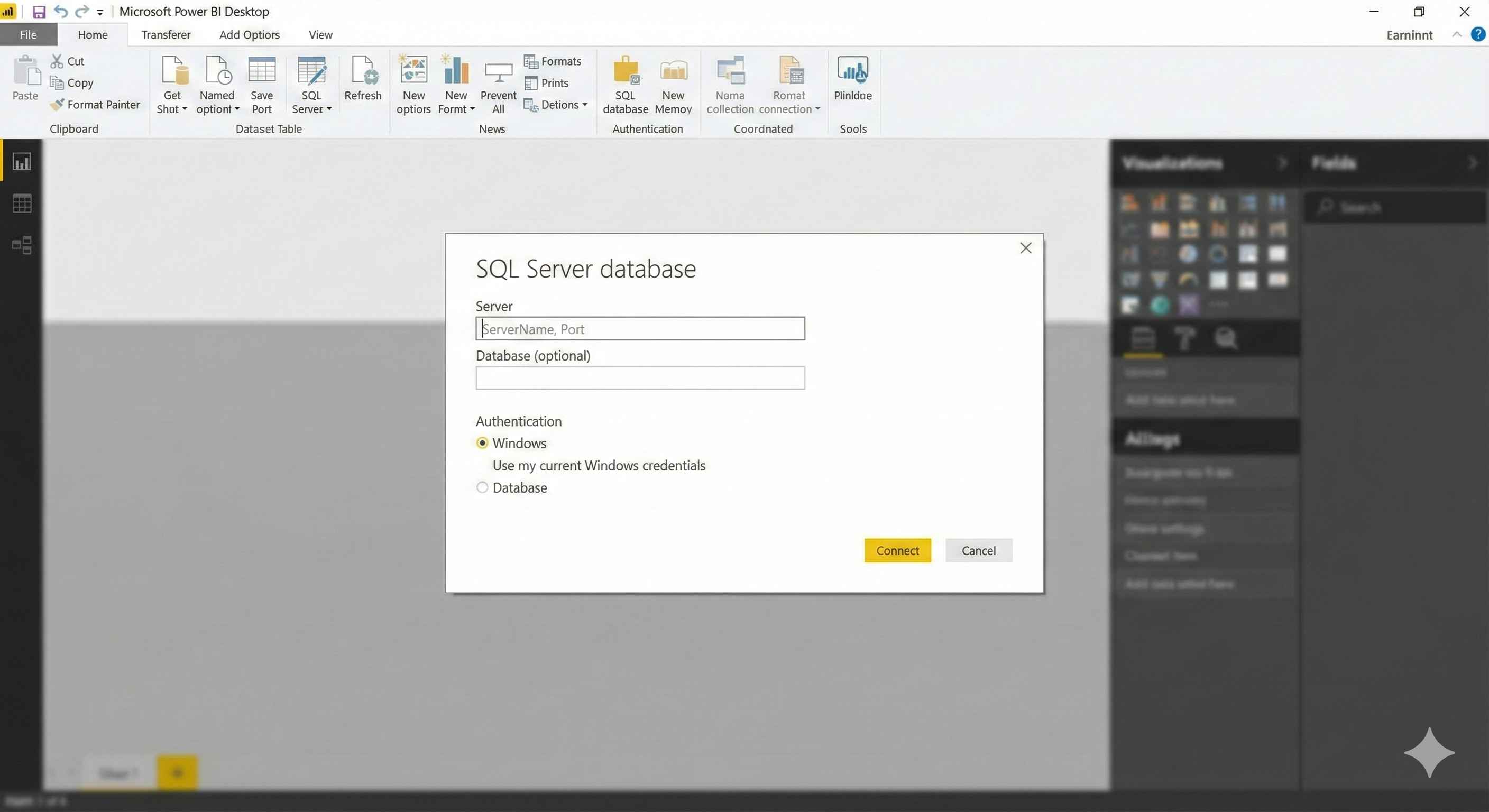
- Get Data > SQL Server
- Enter server name
- Enter database name
- Select tables
- Click Load
Connect to Web
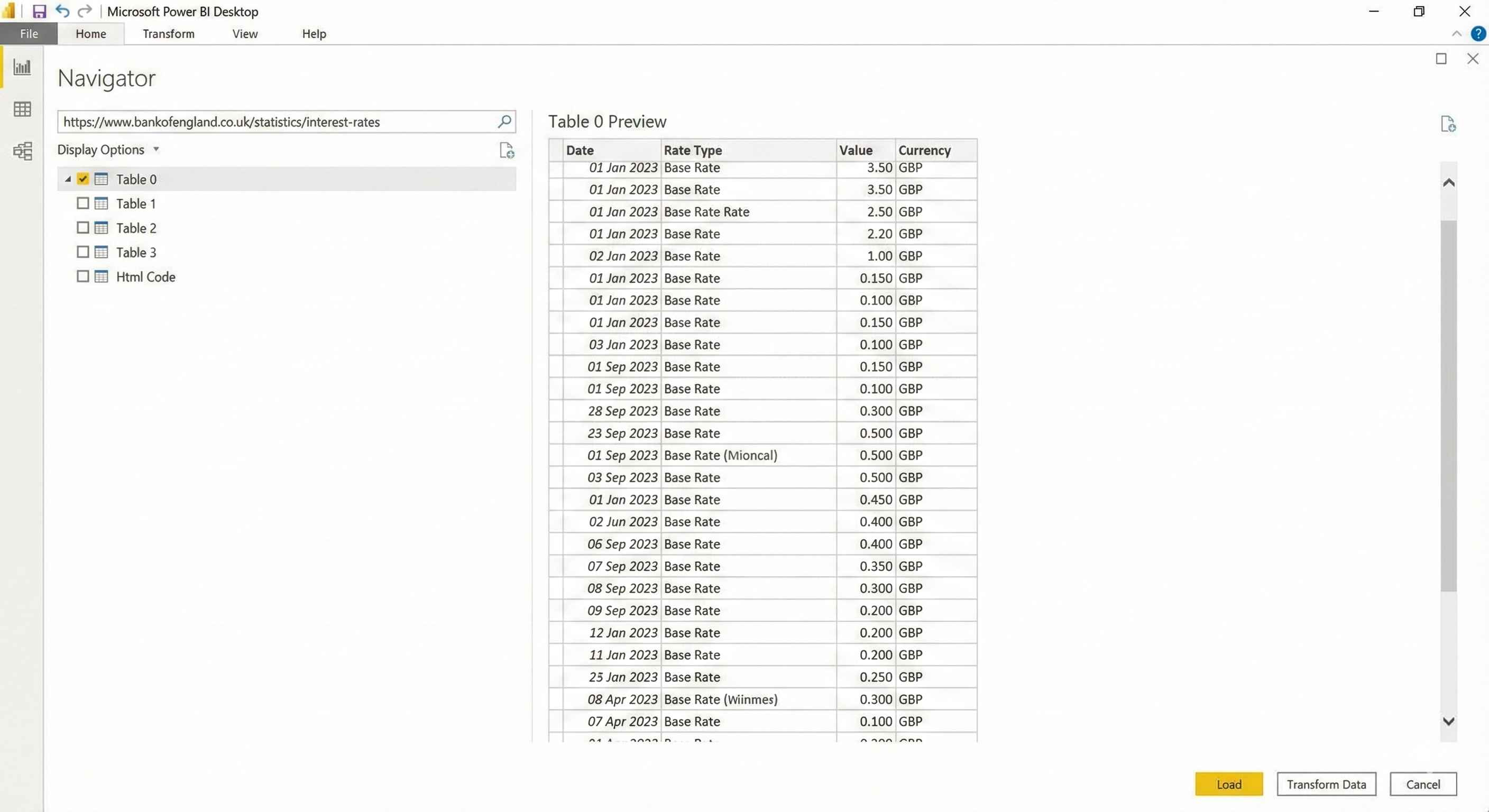
- Get Data > Web
- Paste the URL
- Power BI finds tables on the page
- Select and Load
Import vs DirectQuery
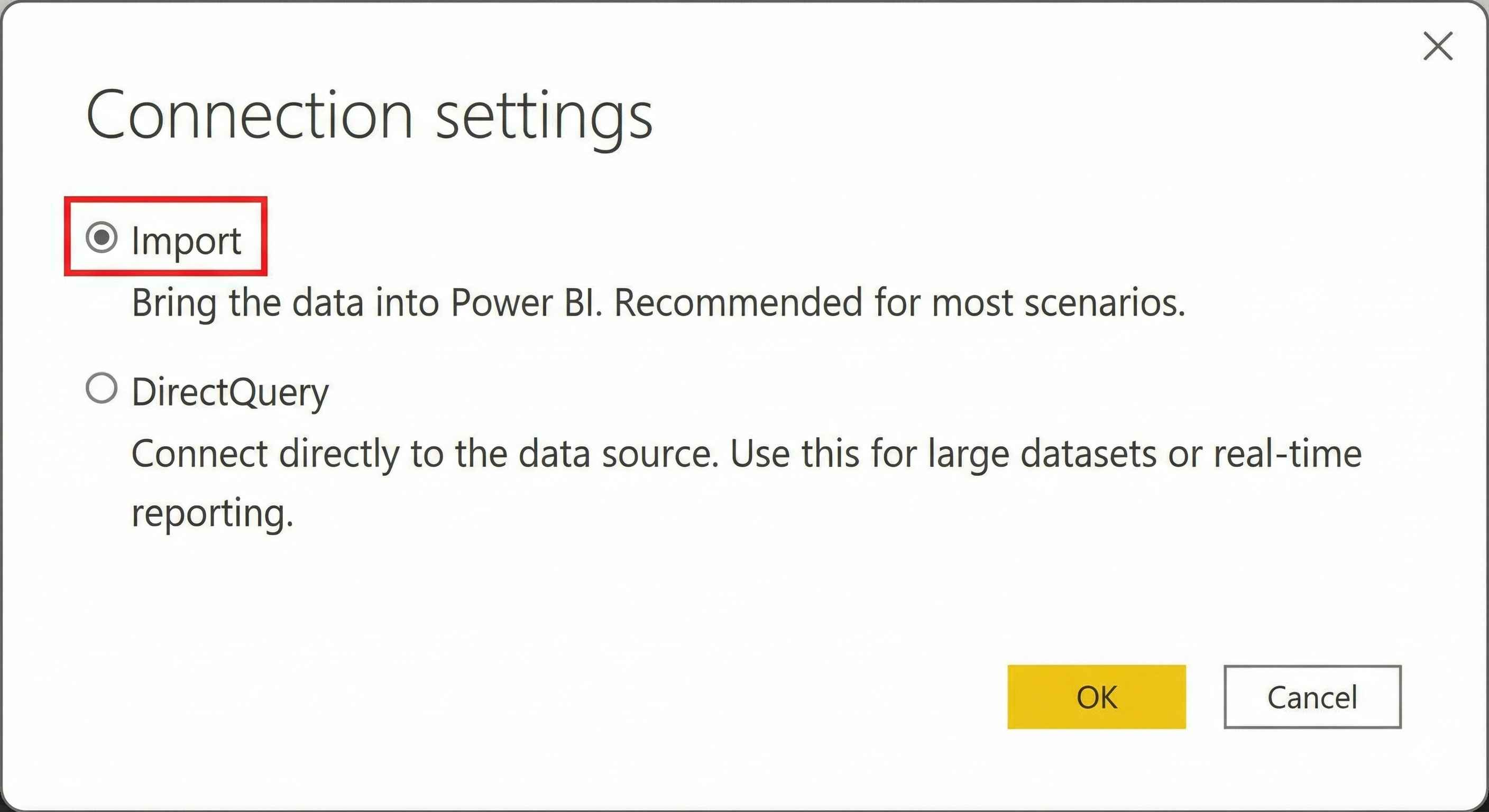
| Mode | What it does | Best for |
|---|---|---|
| Import | Copies data into Power BI | Most cases, faster |
| DirectQuery | Queries live database | Real-time data, huge datasets |
Use Import unless you have a specific reason for DirectQuery.
Load vs Transform
When connecting, you see two buttons:
- Load - Import data as-is
- Transform Data - Clean data first (recommended)
Always click Transform Data. It's easier to fix issues before loading.