Power Query Basics
Clean and transform messy data without formulas
Power Query Basics
Power Query is a tool that cleans and transforms data. Think of it as a data washing machine. Dirty data goes in, clean data comes out.
The best part: Power Query remembers what you did. Next time, just click Refresh.
Why Use Power Query?
Without Power Query: You have messy data. You write formulas like TRIM, UPPER, IF. You drag them down 10,000 rows. Your file becomes slow. Next week, you do it all again.
With Power Query: You click a few buttons. Data is cleaned. Next week, you click Refresh. Done in 2 seconds.
How to Open Power Query
Method 1: Data tab > Get Data > From File > From Excel Workbook (or CSV)
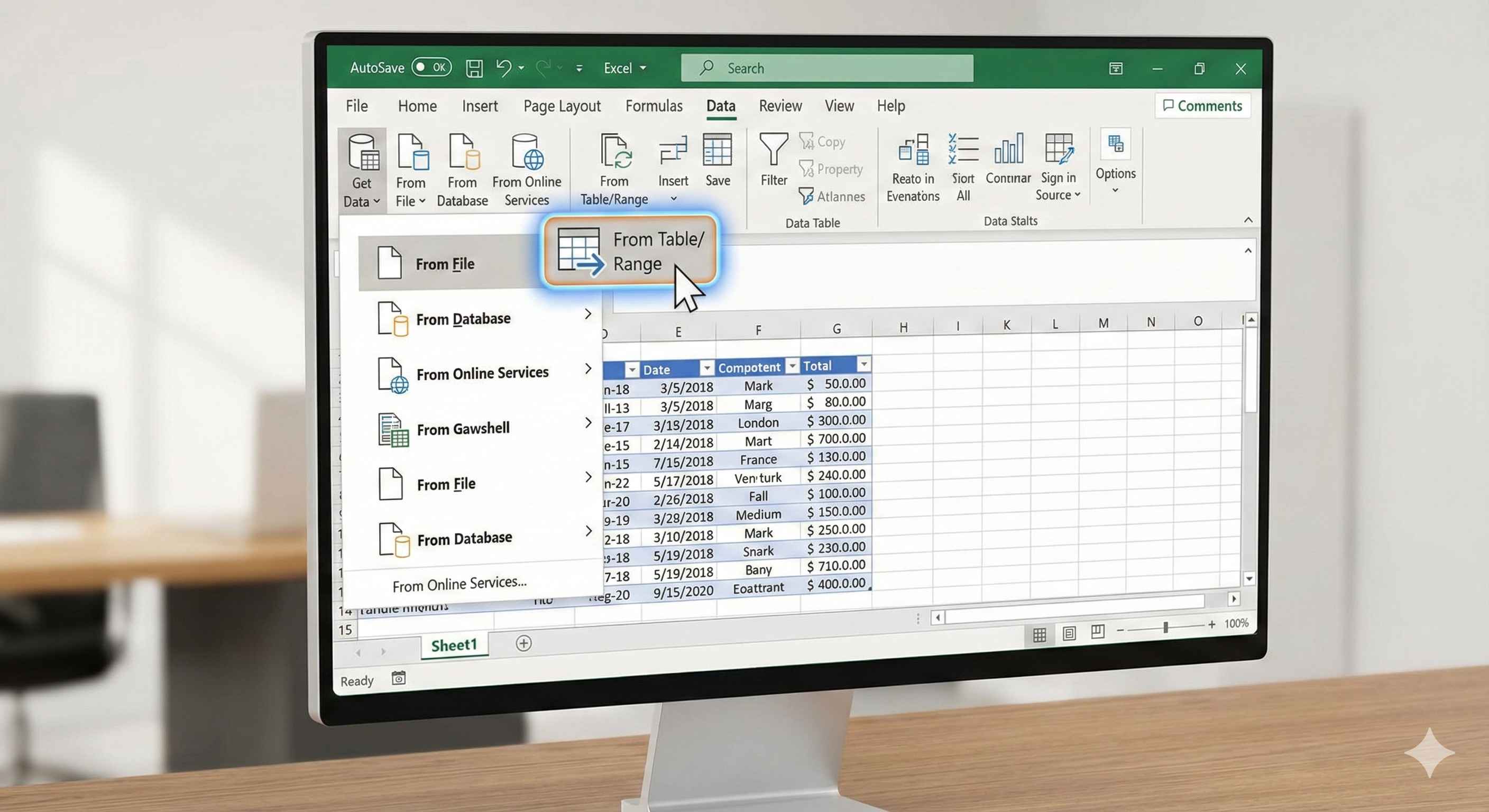
Method 2: Select your data > Data tab > From Table/Range
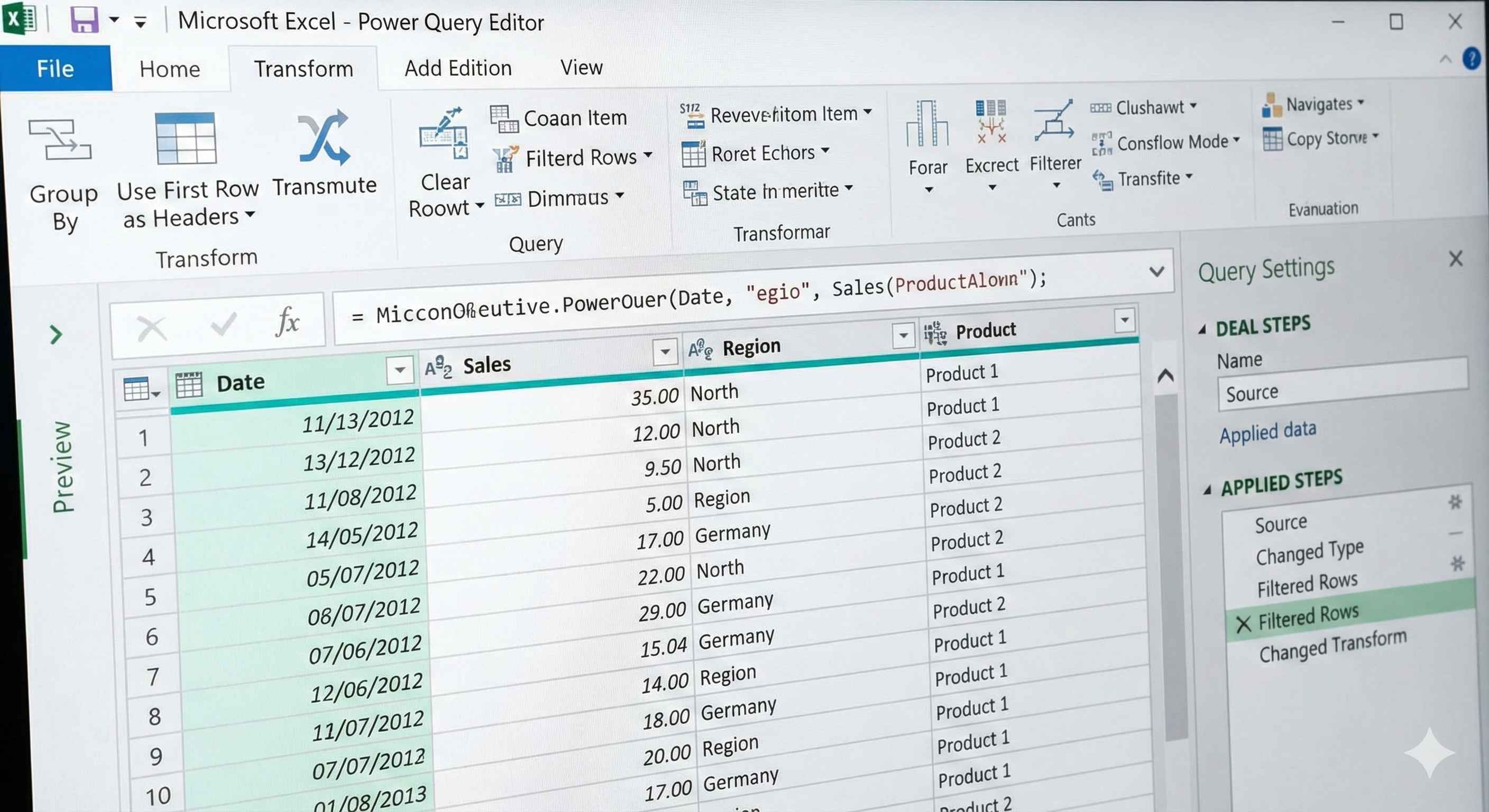
The Power Query Editor opens. This is where you clean your data.
Your First Power Query
Let us clean some messy data.
Step 1: Select your data in Excel
Step 2: Go to Data tab > From Table/Range
Step 3: Power Query Editor opens
Step 4: Clean your data (we will learn how below)
Step 5: Click Close & Load (Home tab)
Your cleaned data appears in a new sheet.
Common Cleaning Tasks
| Problem | Solution in Power Query |
|---|---|
| Extra spaces in text | Transform > Format > Trim |
| Wrong case (JOHN vs john) | Transform > Format > Uppercase/Lowercase |
| Blank rows | Home > Remove Rows > Remove Blank Rows |
| Duplicate rows | Home > Remove Rows > Remove Duplicates |
| Wrong data type | Click column header icon > Choose correct type |
| Need to split a column | Transform > Split Column > By Delimiter |
Example: Remove Extra Spaces
Your data has names like " John " with extra spaces.
Step 1: Click the Name column
Step 2: Go to Transform tab
Step 3: Click Format > Trim
All extra spaces are removed. " John " becomes "John".
Example: Split Full Name into First and Last
You have "John Smith" in one column. You want First Name and Last Name separately.
Step 1: Click the Full Name column
Step 2: Go to Transform tab
Step 3: Click Split Column > By Delimiter
Step 4: Choose Space as the delimiter
Step 5: Click OK
Now you have two columns: "John" and "Smith".
Example: Change Data Type
Your dates show as text (not recognized as dates).
Step 1: Click the Date column header
Step 2: You see "ABC" icon (meaning text)
Step 3: Click it and choose Date
Now Excel recognizes it as a date.
The Applied Steps Panel
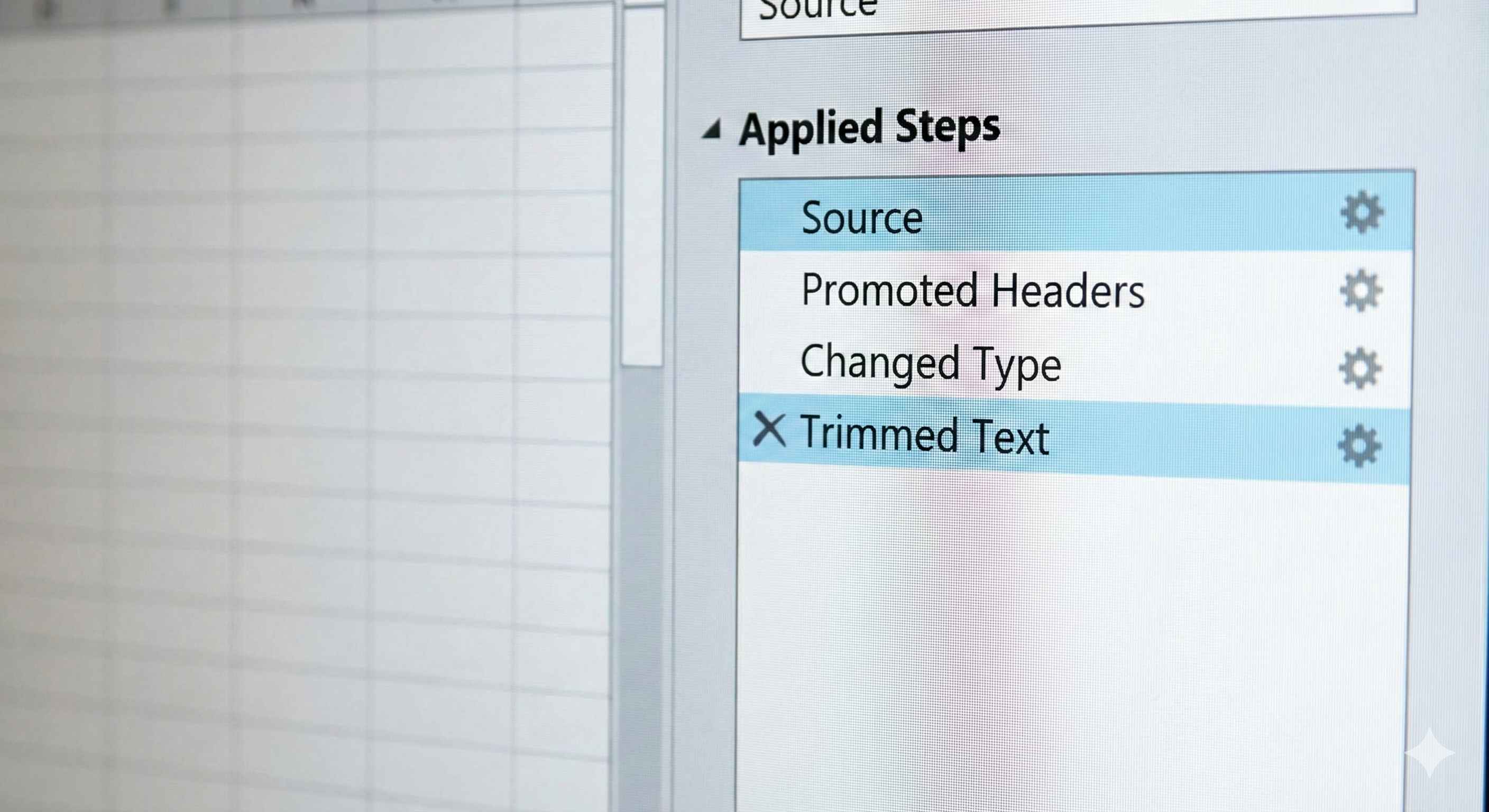
On the right side, you see "Applied Steps". This shows everything you did:
- Source
- Changed Type
- Trimmed Text
- Split Column
You can:
- Click any step to see data at that point
- Click X to delete a step
- Click the gear icon to edit a step
This is how Power Query remembers your work.
Refreshing Your Data
When your source data changes:
Step 1: Click anywhere in your Power Query result table
Step 2: Go to Data tab > Refresh
Power Query runs all your steps again on the new data. Automatic cleaning.
Combining Multiple Files
You have 12 monthly reports in one folder. You want them in one table.
Step 1: Data tab > Get Data > From File > From Folder
Step 2: Select the folder
Step 3: Click Combine & Transform
Power Query combines all files into one table.
Next month, add a new file to the folder and click Refresh. It is included automatically.
Common Mistakes
Mistake 1: First row is data, not headers Solution: Home > Use First Row as Headers
Mistake 2: Numbers showing as text Solution: Change data type to Whole Number or Decimal
Mistake 3: Forgetting to click Close & Load Solution: Always click Home > Close & Load when done
Summary
- Power Query cleans data without formulas
- Data tab > From Table/Range to start
- Transform tab has cleaning tools (Trim, Split, Format)
- Applied Steps shows what you did
- Click Refresh to re-run on new data
- Can combine multiple files from a folder
Power Query is one of the most useful features in Excel. It saves hours of manual work. Learn it and you will use it every day.