Macros & VBA Basics
Automate repetitive tasks with one click
Macros & VBA Basics
A macro is a recording of actions that Excel can repeat automatically.
Think of it like recording a video. You record yourself doing a task once. Then you press play and Excel does it again - exactly the same way, in seconds.
Why Use Macros?
Imagine you format a report every week:
- Bold the headers
- Add borders
- Apply currency format
- Adjust column widths
This takes 5 minutes every time. With a macro, you do it once. Next time, one click and it is done in 2 seconds.
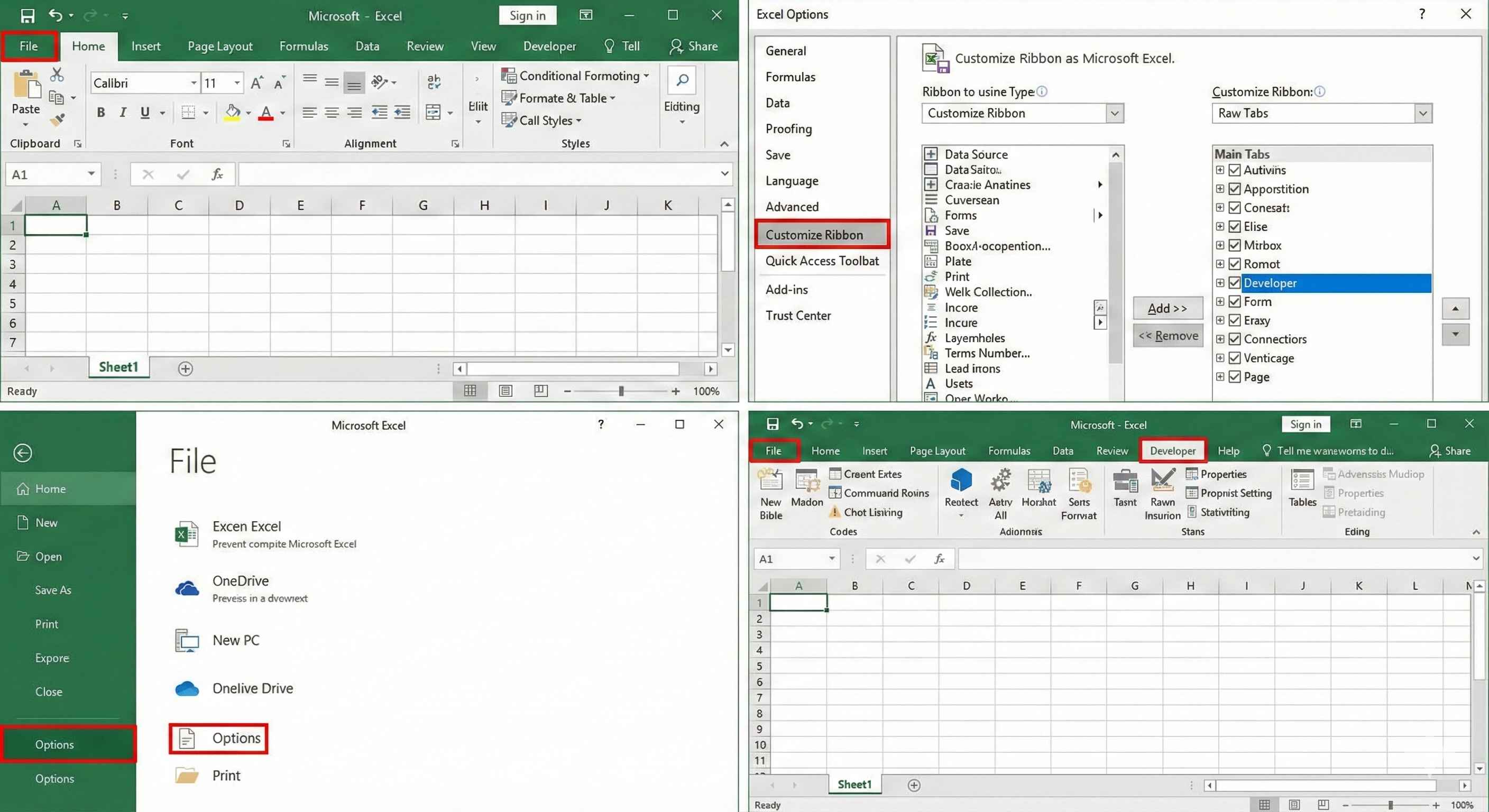
Step 1: Enable the Developer Tab
The Developer tab is hidden by default. You need to turn it on.
Step 1: Go to File > Options
Step 2: Click Customize Ribbon
Step 3: On the right side, check the box next to "Developer"
Step 4: Click OK
Now you see the Developer tab in your ribbon.
Step 2: Record Your First Macro
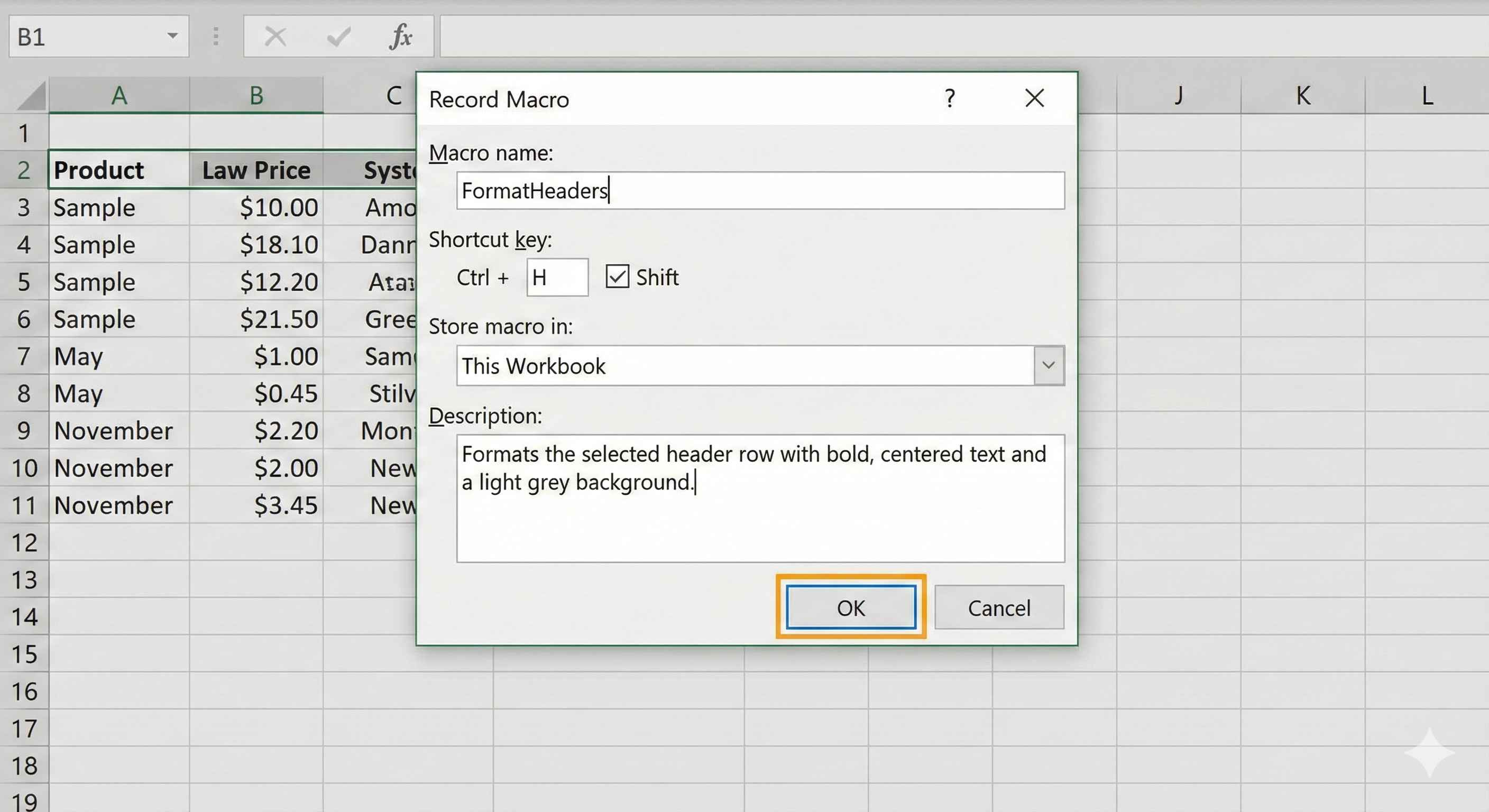
Let us record a macro that formats headers.
Step 1: Click on cell A1 (always start from a known position)
Step 2: Go to Developer tab
Step 3: Click Record Macro
Step 4: Give it a name: FormatHeaders (no spaces allowed)
Step 5: Click OK
Now everything you do is being recorded.
Step 6: Do your formatting:
- Select row 1
- Press Ctrl+B to make it bold
- Change the background color to blue
- Change the font color to white
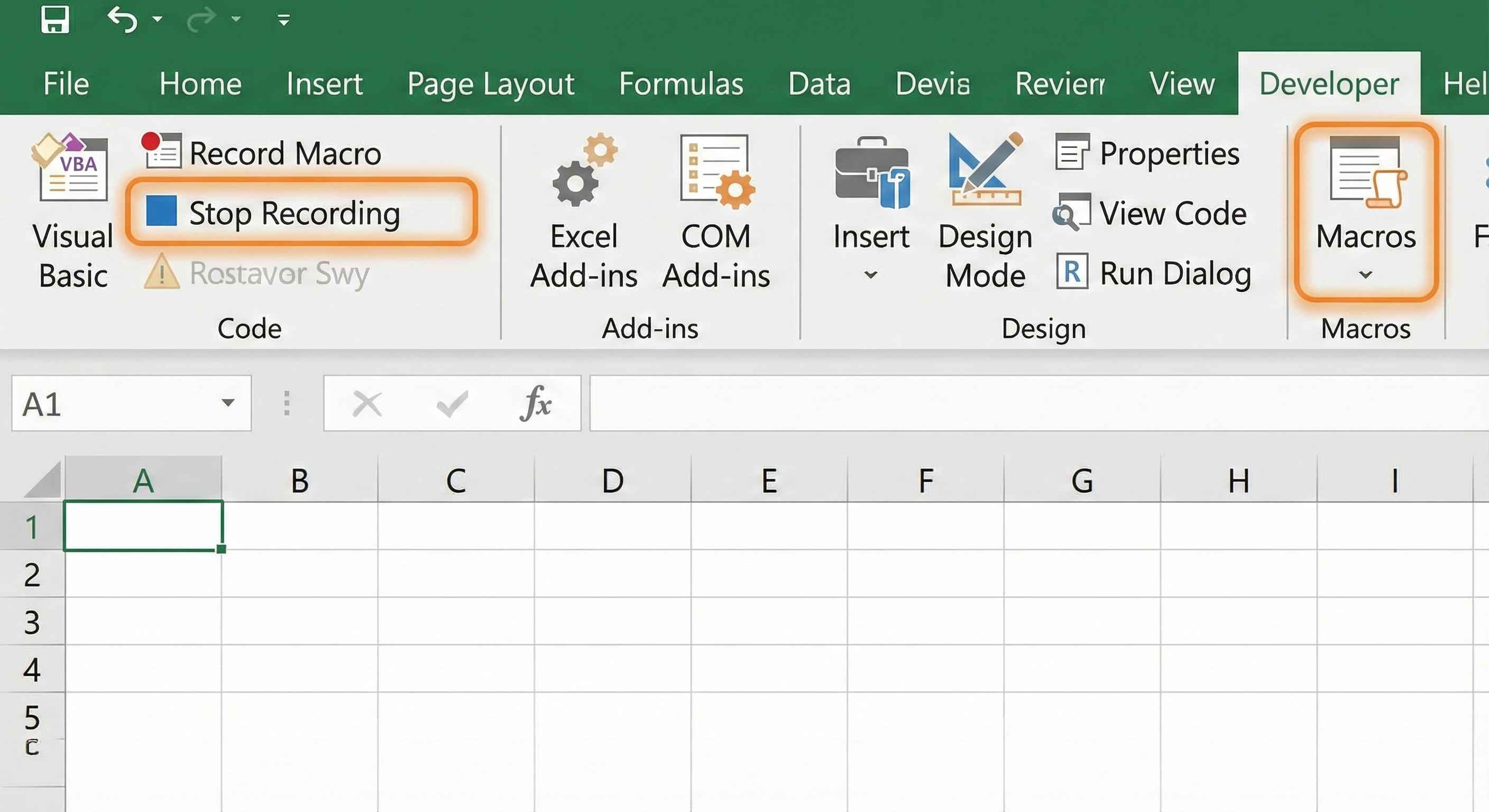
Step 7: Click Stop Recording (Developer tab)
Your macro is saved.
Step 3: Run Your Macro
Method 1: From the menu
- Developer tab > Macros
- Select FormatHeaders
- Click Run
Method 2: Keyboard shortcut When recording, you can assign a shortcut like Ctrl+Shift+H. Then just press those keys.
Method 3: Add a button
- Developer tab > Insert > Button
- Draw a button on your sheet
- Assign your macro to it
- Click the button anytime to run
What Happens Behind the Scenes
When you record a macro, Excel writes code in a language called VBA (Visual Basic for Applications).
You can see this code:
- Developer tab > Macros
- Select your macro
- Click Edit
You will see something like this:
Sub FormatHeaders()
    Rows("1:1").Select
    Selection.Font.Bold = True
    Selection.Interior.Color = RGB(0, 0, 255)
    Selection.Font.Color = RGB(255, 255, 255)
End Sub
Do not worry about understanding this. Excel writes it for you. But knowing it exists helps if you want to make small changes later.
Practical Examples
| Macro Name | What It Does | Time Saved |
|---|---|---|
| FormatReport | Formats headers, adds borders, currency | 5 minutes |
| CleanData | Removes extra spaces, fixes text | 10 minutes |
| ExportPDF | Saves current sheet as PDF | 1 minute |
| CreateSummary | Adds SUM formulas at bottom | 3 minutes |
Important: Save as .xlsm
Normal Excel files (.xlsx) cannot save macros. You must save as:
Excel Macro-Enabled Workbook (.xlsm)
File > Save As > Choose "Excel Macro-Enabled Workbook"
If you save as .xlsx, your macros will be lost.
Macro Security
Macros can be dangerous if they come from unknown sources. A bad macro could delete your files or steal data.
Safety rules:
- Only run macros you created yourself
- Only run macros from people you trust
- Never enable macros in files from email attachments
- Never enable macros in files downloaded from unknown websites
To check your security settings: File > Options > Trust Center > Trust Center Settings > Macro Settings
Choose: "Disable all macros with notification"
This way, Excel asks you before running any macro.
Common Mistakes
Mistake 1: Recording from wrong starting position Solution: Always click cell A1 before recording
Mistake 2: Saving as .xlsx instead of .xlsm Solution: Use Save As and choose Macro-Enabled Workbook
Mistake 3: Macro does not work on different data Solution: Record using relative references (Developer > Use Relative References)
Tips for Good Macros
- Use clear names: FormatMonthlyReport not Macro1
- Test on a copy of your data first
- Record slowly and carefully
- Stop recording as soon as you finish
Summary
- Macros record your actions and replay them
- Developer tab > Record Macro to start
- Developer tab > Stop Recording when done
- Developer tab > Macros to run
- Save as .xlsm to keep your macros
- Only run macros you trust
Macros are one of the most powerful features in Excel. They turn 10-minute tasks into 2-second tasks. Start with simple formatting macros and build from there.