Parentheses in Formulas
Control the order of calculations with brackets
Parentheses in Formulas
Parentheses (brackets) tell Excel what to calculate first.
Why Parentheses Matter
Without parentheses, Excel follows math rules:
- Multiply and divide first
- Add and subtract last
Example
=10+5*2
Excel does: 5×2 = 10, then 10+10 = 20
But what if you want to add first?
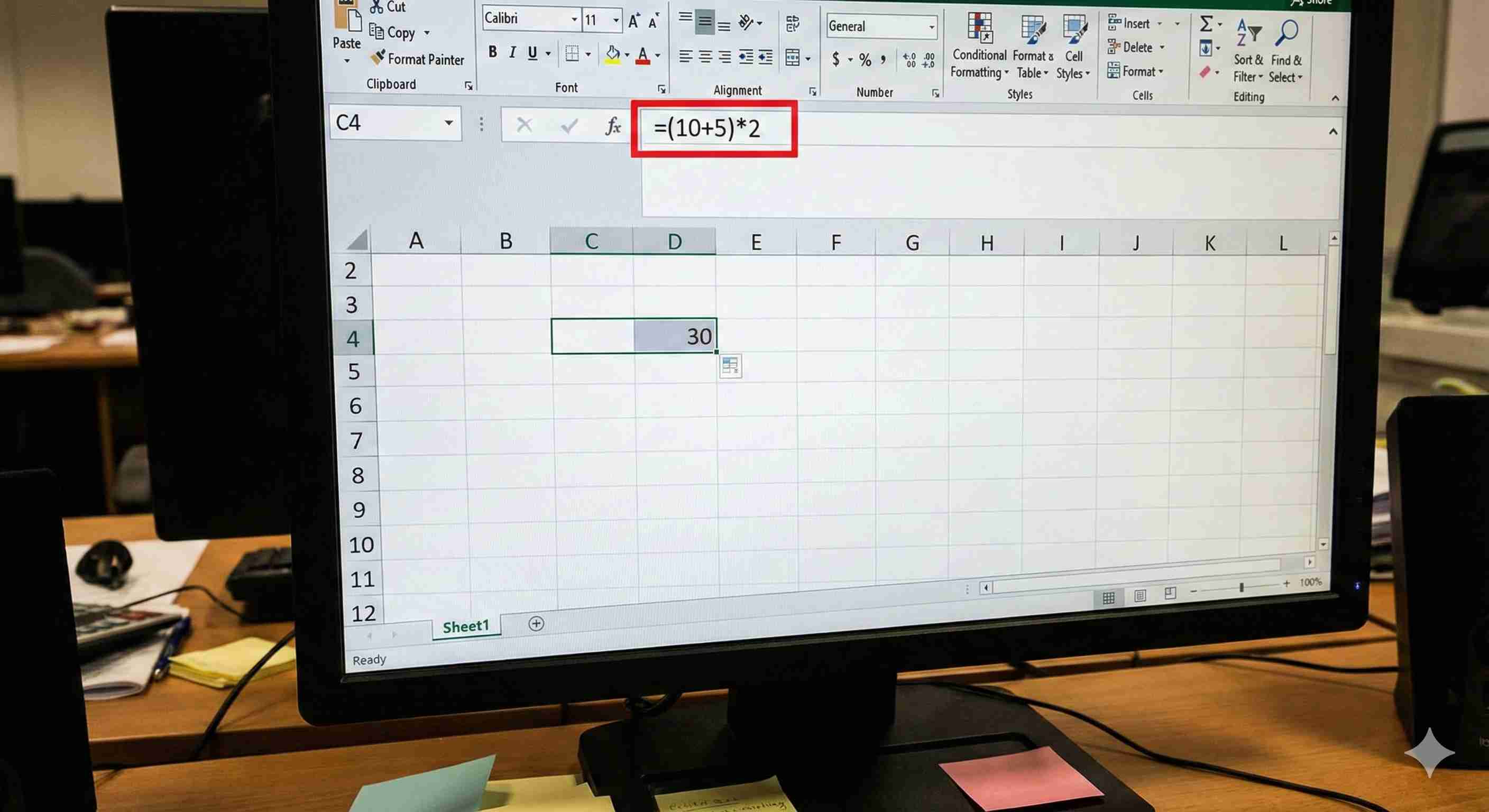
=(10+5)*2
Excel does: 10+5 = 15, then 15×2 = 30

Simple Rule
What's inside () happens first.
Real Examples
Example 1: Calculate Average Price
You have 3 prices: 100, 150, 200
Wrong: =100+150+200/3 = 316.67
Excel does: 200÷3 first, then adds 100+150
Right: =(100+150+200)/3 = 150

Example 2: Calculate Total with Tax
Price = 100, Tax = 10%
Wrong: =100+100*10/100
Right: =100*(1+10/100) = 110
Example 3: Percentage Change
Old = 50, New = 75
Formula: =(75-50)/50*100 = 50%
Subtract first (in brackets), then divide.

Nested Parentheses
You can put brackets inside brackets.
Excel solves inside brackets first.
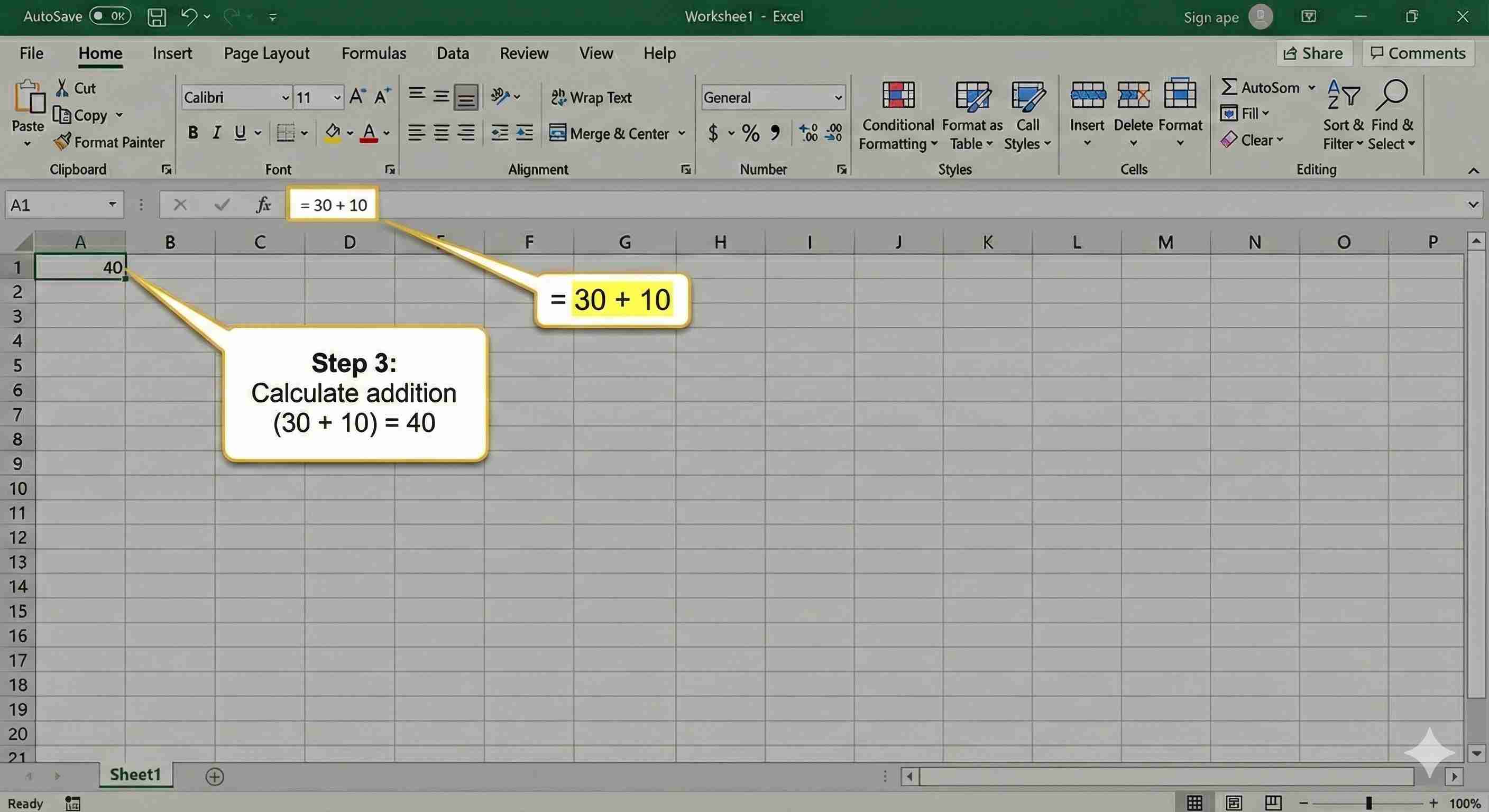
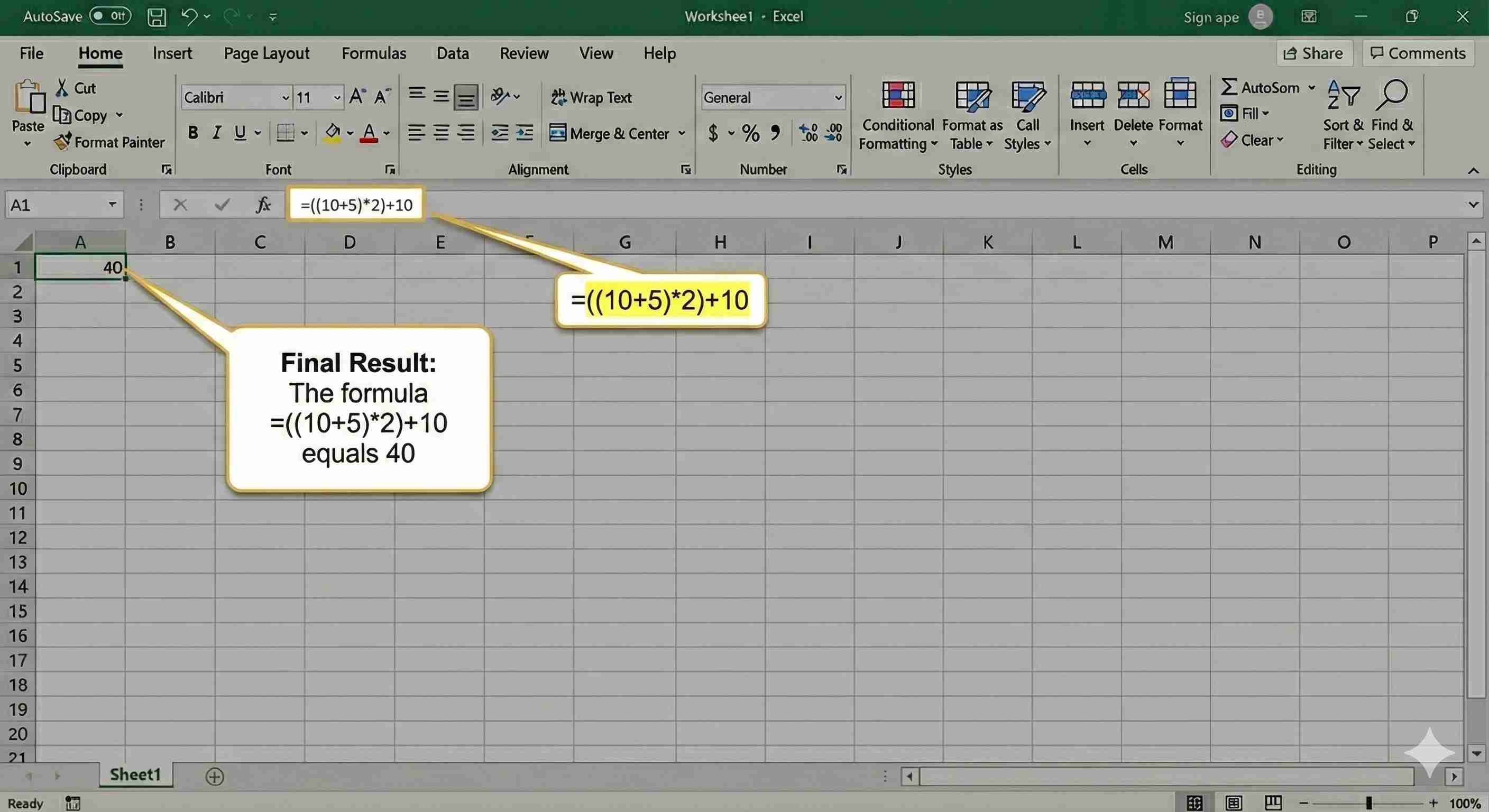
=((10+5)*2)+10
Step 1: 10+5 = 15

Step 2: 15×2 = 30

Step 3: 30+10 = 40
Final Result: 40
Common Mistakes
| Mistake | Problem |
|---|---|
| =(10+5 | Missing closing bracket |
| =10+5) | Missing opening bracket |
| =((10+5)*2 | Unequal brackets |
Tip: Count your brackets! Opening ( must equal closing )
Summary
- Use () to control what calculates first
- Inside brackets = happens first
- Always match opening and closing brackets
- When in doubt, add more brackets!