Undo & Redo - Fix Mistakes Instantly
Master Undo and Redo to work confidently in Excel
Undo & Redo - Fix Mistakes Instantly
Made a mistake? Don't panic! Excel has Undo and Redo to fix it.
What is Undo?
Undo reverses your last action - like a time machine going one step back.
When to Use Undo
- Delete something by accident
- Apply wrong formatting
- Add unwanted rows or columns
- Make any mistake!
Examples
- Accidentally deleted a formula? Undo brings it back
- Added a column in the wrong place? Undo removes it
- Removed a row you needed? Undo restores it

How to Undo
There are two ways:
1. Undo Button
Look at the top-left corner of Excel - you'll see a curved arrow ⤺
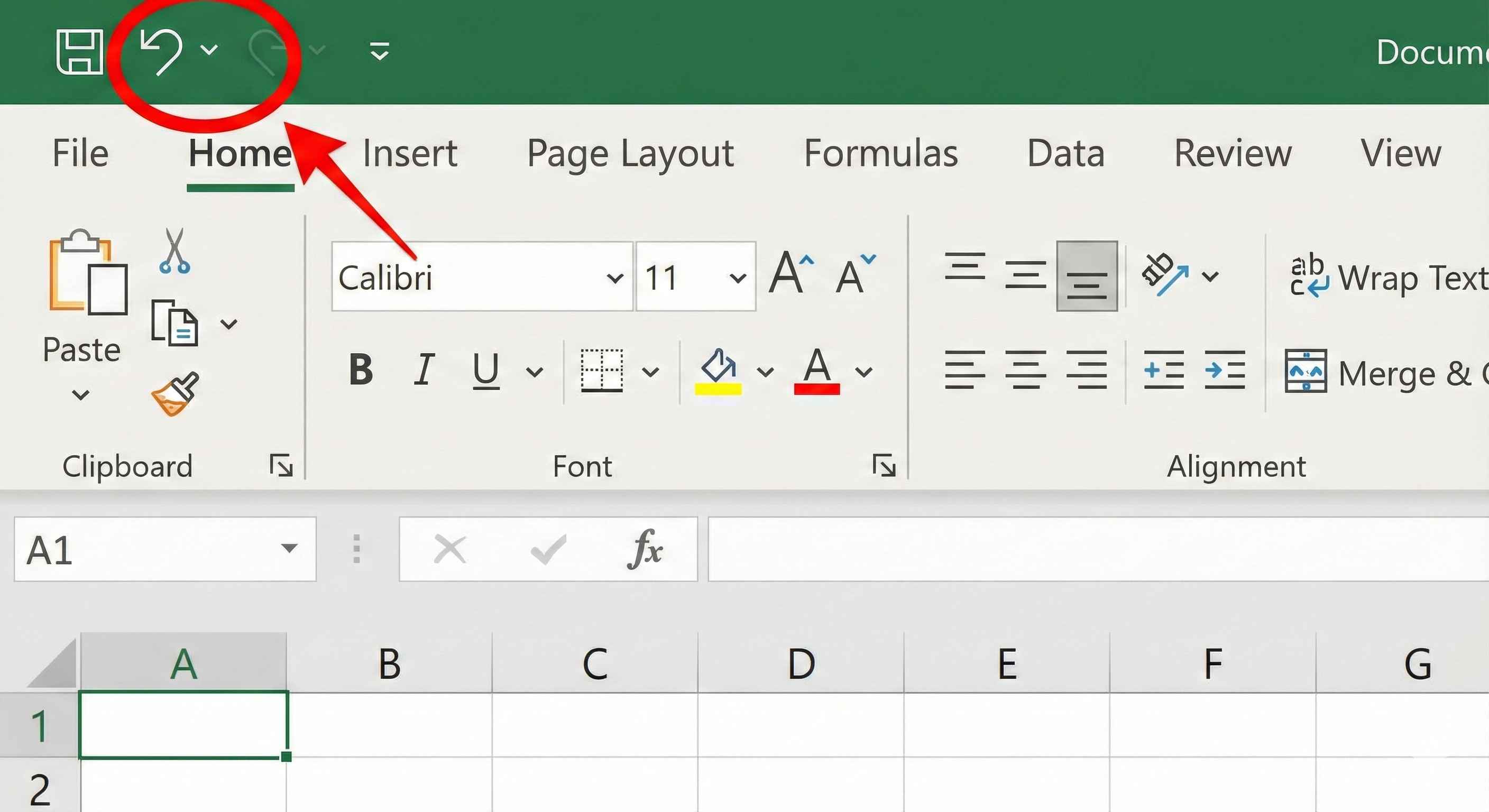
Click it to undo your last action!
2. Keyboard Shortcut (Faster!)
- Windows: Press Ctrl + Z
- Mac: Press Cmd + Z
Tip: Keep pressing Ctrl+Z to undo multiple actions!
What is Redo?
Redo brings back what you just undid.
Think: "Actually, I changed my mind - put it back!"
Important: Redo only works after you've used Undo.

How to Redo
1. Redo Button
Next to the Undo button, you'll see a curved arrow pointing right ⤻
2. Keyboard Shortcut
- Windows: Press Ctrl + Y
- Mac: Press Cmd + Y
Real Example
Let's see it in action:
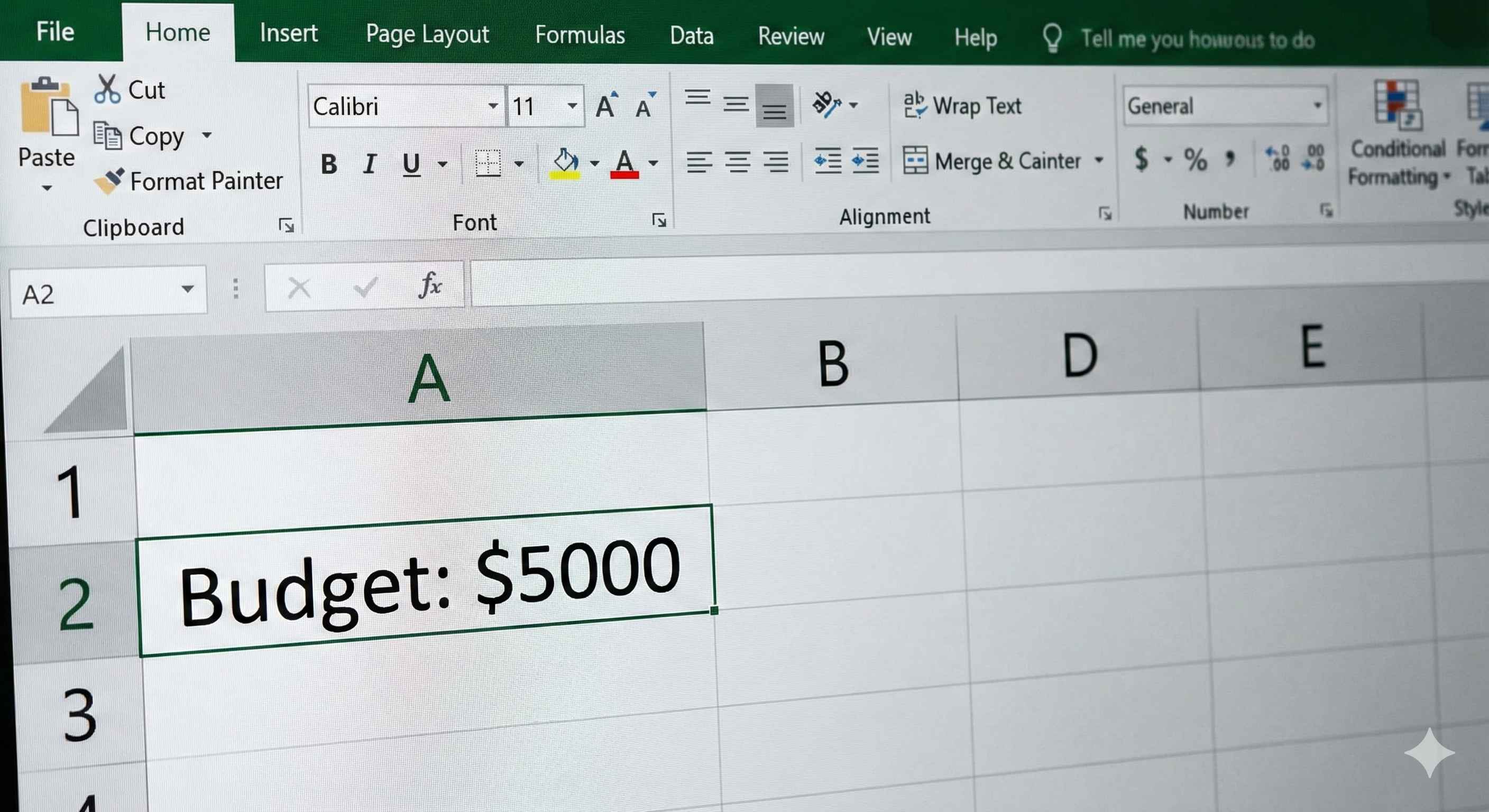
Step 1: Initial State
You have a spreadsheet with "Budget: $5000" in cell A2
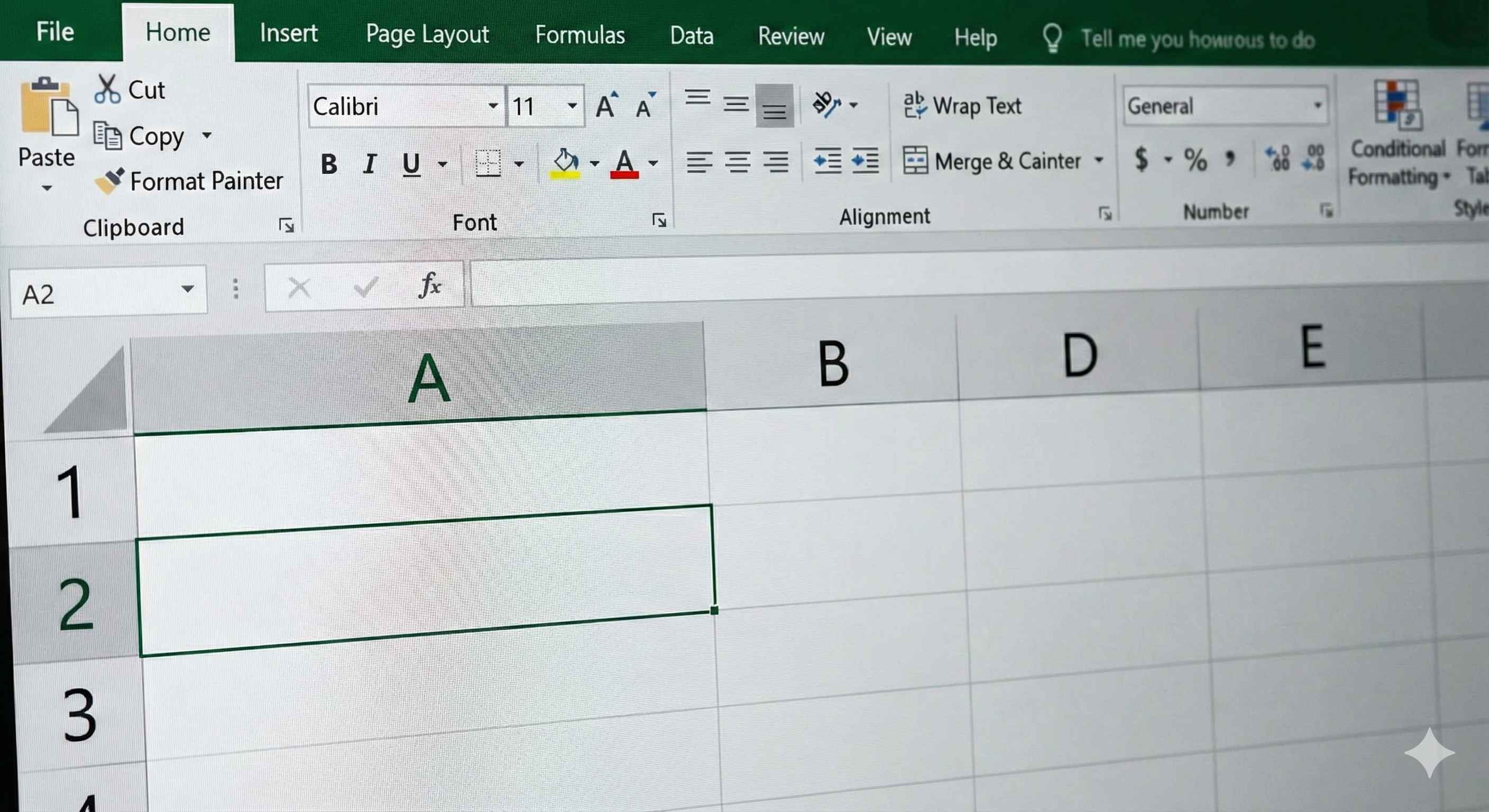
Step 2: Deleting the Row
You accidentally delete the row containing the data
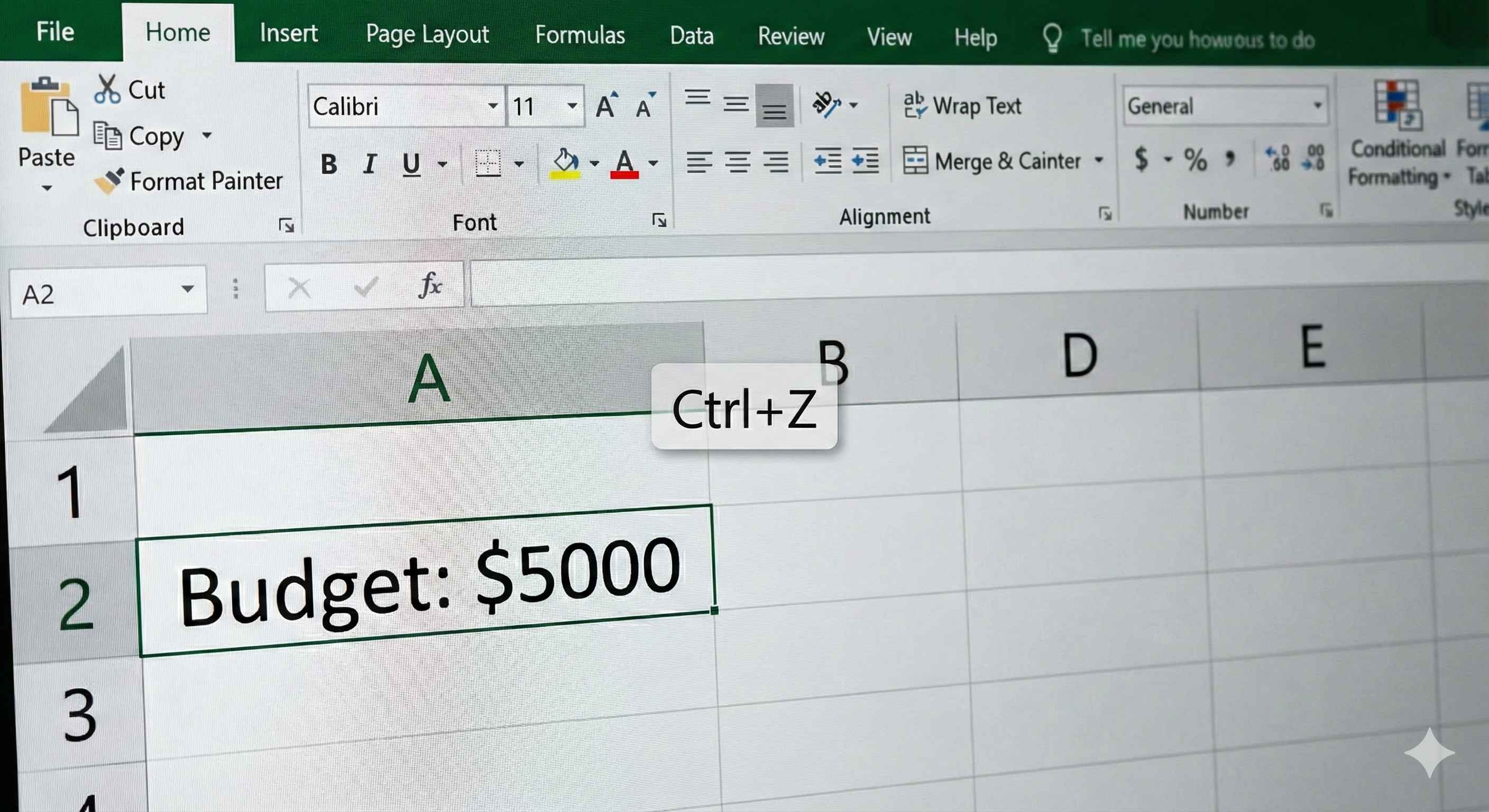
Step 3: Undoing the Deletion (Ctrl+Z)
Press Ctrl+Z - The row comes back with your data!
Step 4: Redoing the Deletion (Ctrl+Y)
Changed your mind? Press Ctrl+Y - Row is deleted again

What You CAN'T Undo
❌ Saving your file ❌ Printing ❌ Deleting a worksheet ❌ Changing Excel settings
Rule: You can undo things in your spreadsheet, but not File menu actions.
Quick Reference
| Action | Windows | Mac |
|---|---|---|
| Undo | Ctrl + Z | Cmd + Z |
| Redo | Ctrl + Y | Cmd + Y |
Practice Exercise
Try this:
- Type "Hello" in cell A1
- Type "World" in cell B1
- Press Ctrl+Z → "World" disappears
- Press Ctrl+Z again → "Hello" disappears
- Press Ctrl+Y → "Hello" comes back
- Press Ctrl+Y again → "World" comes back
You control time in Excel! ⏰
Pro Tips
✅ Practice Ctrl+Z and Ctrl+Y - make them muscle memory
✅ Don't be afraid to experiment - you can always undo
✅ Save often - use Ctrl+S (undo won't help if Excel crashes)
What's Next?
You now know how to fix mistakes instantly!
Next lesson: Excel Setup & Best Practices - configure Excel for maximum productivity!