COUNTIF & SUMIF
Count and add numbers based on conditions
COUNTIF & SUMIF - Smart Counting and Adding
Ever needed to count how many students passed? Or add up only the "Food" expenses? These functions do exactly that!
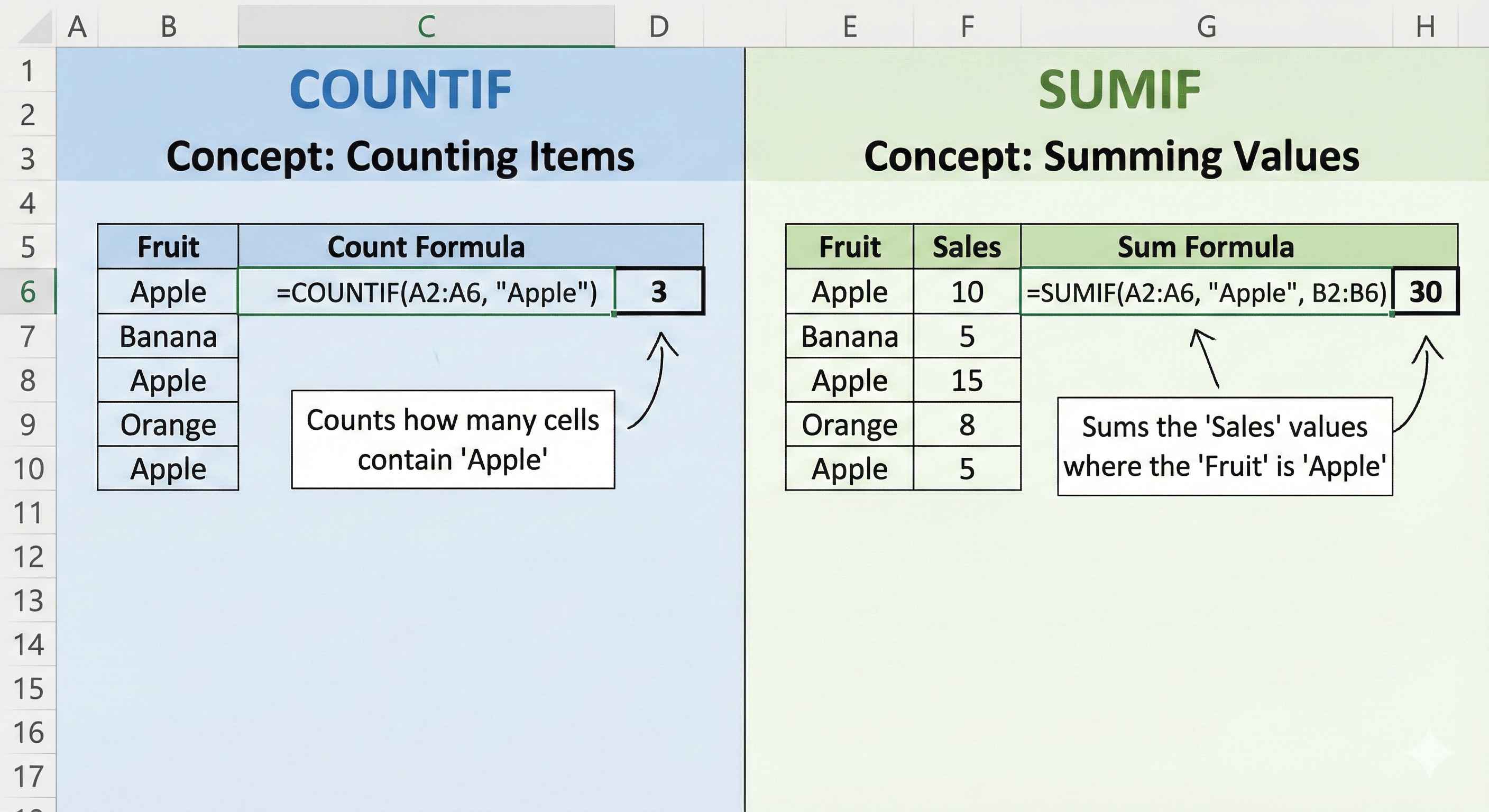
Part 1: COUNTIF - Count Things
COUNTIF counts cells that match your rule.
Formula: =COUNTIF(where_to_look, what_to_find)

Example 1: Count High Scores
You have test scores. How many students scored above 80?
| A (Name) | B (Score) |
|---|---|
| John | 85 |
| Mary | 72 |
| Bob | 90 |
| Alice | 68 |
| Tom | 88 |
Formula: =COUNTIF(B1:B5, ">80")
Answer: 3 (John-85, Bob-90, Tom-88)
Practice: Count Scores Above 70
EasyCount how many scores in A1:A5 are greater than 70.
Example 2: Count Text
| A (Status) |
|---|
| Done |
| Pending |
| Done |
| Done |
How many are Done?
=COUNTIF(A1:A4, "Done") → 3
Practice: Count "Yes" Responses
EasyCount how many cells contain "Yes" in A1:A4.
Important: Use Quotes!
| Condition | Formula |
|---|---|
| Greater than 80 | =COUNTIF(A:A, ">80") |
| Equal to 100 | =COUNTIF(A:A, 100) |
| Less than 50 | =COUNTIF(A:A, "<50") |
| Text "Yes" | =COUNTIF(A:A, "Yes") |
Rule: Put operators like > or < inside quotes!
Part 2: SUMIF - Smart Adding
SUMIF adds numbers only when they match your rule.
Formula: =SUMIF(check_here, rule, add_these)
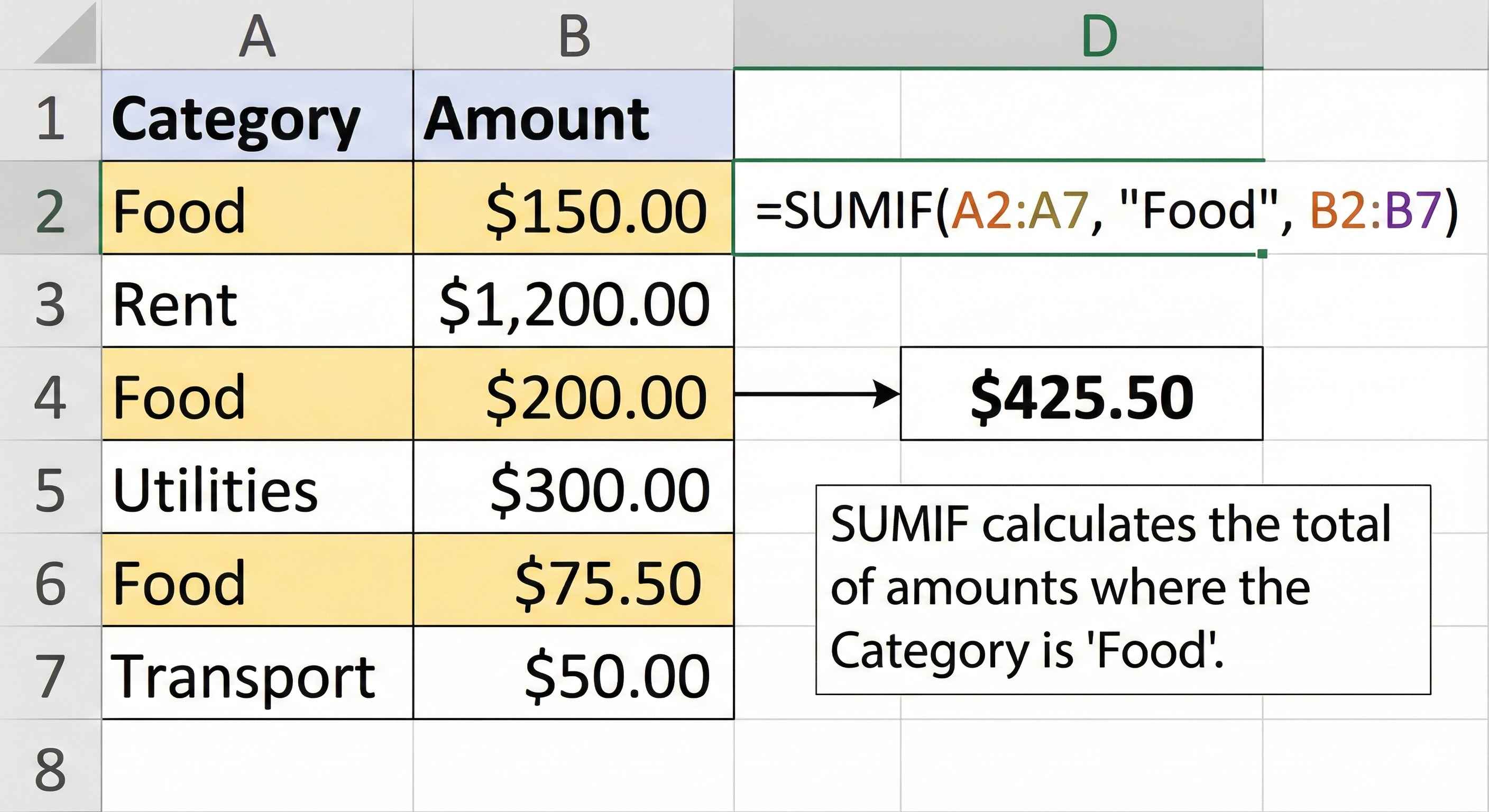
Example: Add Food Expenses
| A (Category) | B (Amount) |
|---|---|
| Food | 100 |
| Transport | 50 |
| Food | 80 |
| Food | 60 |
Add all Food expenses:
=SUMIF(A1:A4, "Food", B1:B4)
Result: 240 (100 + 80 + 60)
Practice: Sum Food Expenses
EasySum the amounts in B1:B4 where category in A1:A4 is "Food".
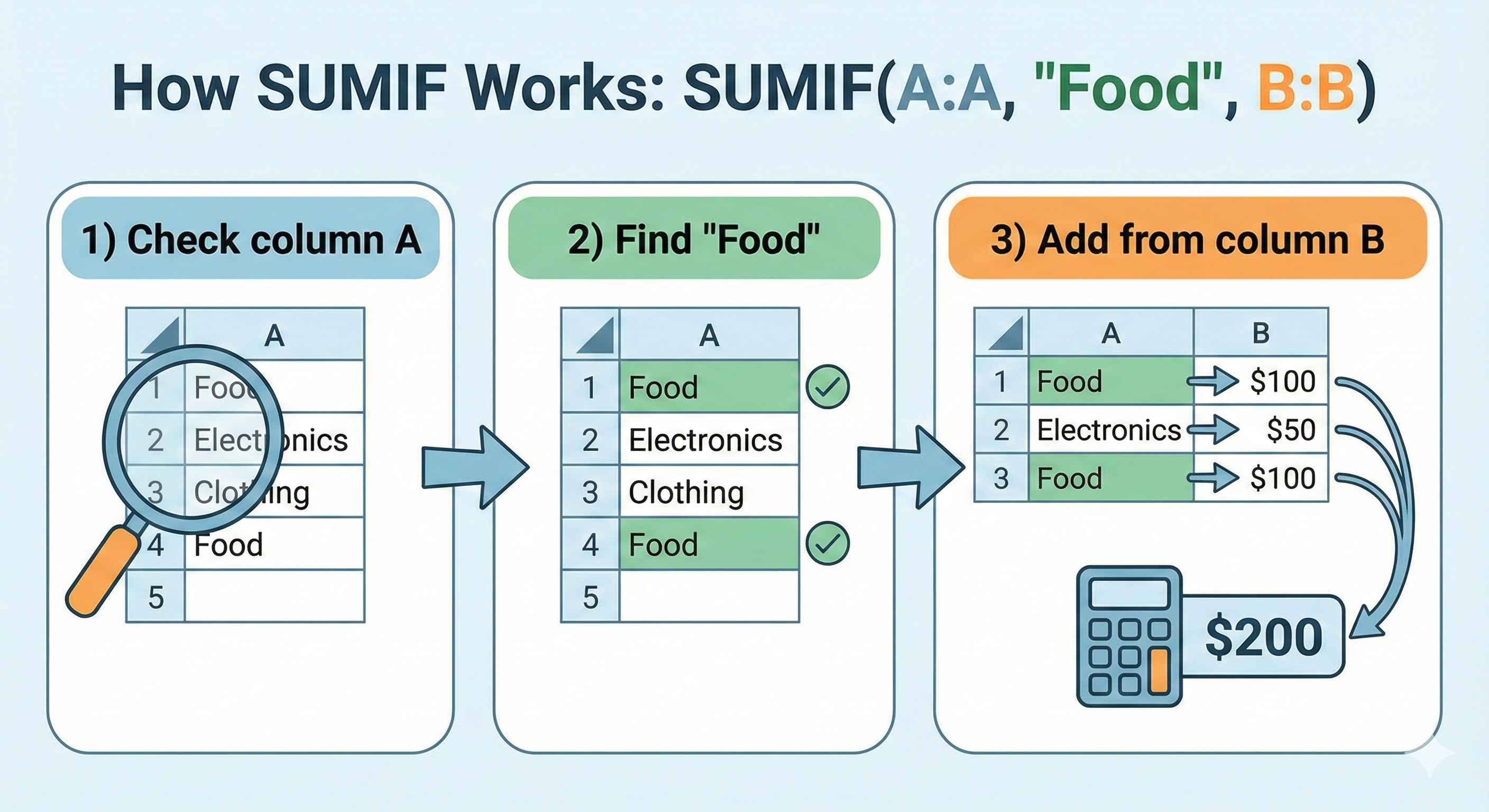
SUMIF Step by Step
=SUMIF(A1:A4, "Food", B1:B4)
- A1:A4 - Look in this column (categories)
- "Food" - Find rows that say "Food"
- B1:B4 - Add numbers from this column
SUMIF with Numbers
Add sales greater than 1000:
| A (Sales) |
|---|
| 500 |
| 1500 |
| 800 |
| 2000 |
=SUMIF(A1:A4, ">1000", A1:A4)
Result: 3500 (1500 + 2000)
Practice: Sum Sales Above 100
EasySum the values in A1:A4 that are greater than 100.
Quick Reference
| Function | What It Does | Example |
|---|---|---|
| COUNTIF | Count cells matching rule | =COUNTIF(A:A, ">80") |
| SUMIF | Add cells matching rule | =SUMIF(A:A, "Food", B:B) |
Common Mistakes
| Wrong | Right | Why |
|---|---|---|
| =COUNTIF(A:A, >80) | =COUNTIF(A:A, ">80") | Missing quotes around >80 |
| =SUMIF(B:B, "Food", A:A) | =SUMIF(A:A, "Food", B:B) | Wrong order - check first, sum second |
| =COUNTIF(A1:A5, Food) | =COUNTIF(A1:A5, "Food") | Missing quotes around text |
Summary
COUNTIF: Counts how many cells match
SUMIF: Adds cells that match
Both need:
- Where to look
- What rule to follow
- (SUMIF also needs: what to add)
These save TONS of time when analyzing data!