Module 12
3 min
Icon Sets
Add visual icons based on cell values
Icon Sets
Add icons to your numbers — see status at a glance!
What are Icon Sets?
Small pictures that appear based on value:
- ✅ Green check = Good
- ⚠️ Yellow warning = OK
- ❌ Red X = Bad
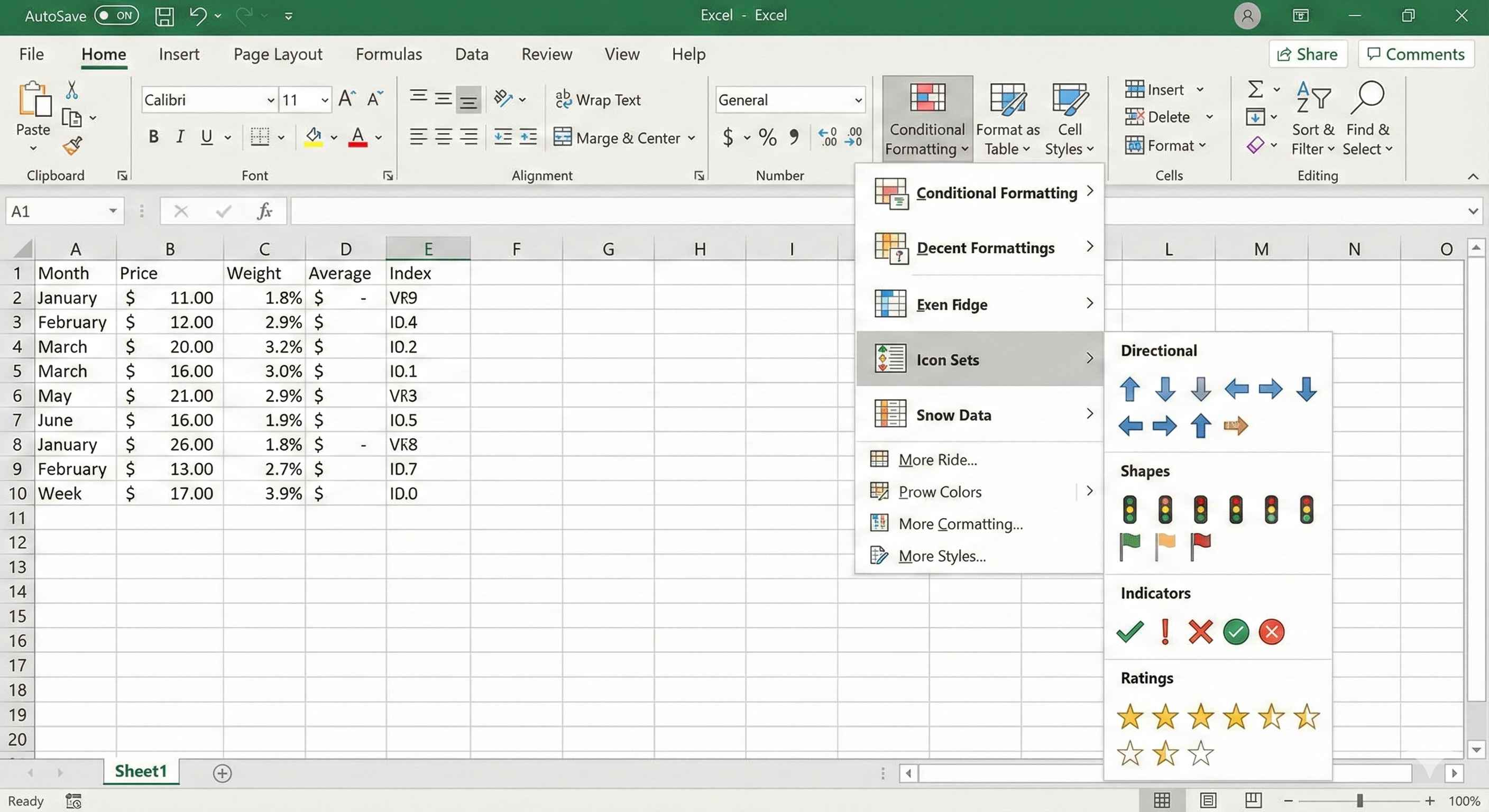
Add Icon Sets
- Select your numbers
- Home → Conditional Formatting
- Icon Sets → Pick a style
Popular Icon Styles
| Style | Icons | Best For |
|---|---|---|
| Traffic Lights | 🔴 🟡 🟢 | Status (good/bad) |
| Arrows | ⬆️ ➡️ ⬇️ | Trends (up/down) |
| Stars | ⭐⭐⭐ | Ratings |
| Flags | 🚩 | Priority levels |
| Checkmarks | ✅ ❌ | Pass/Fail |
5 rows
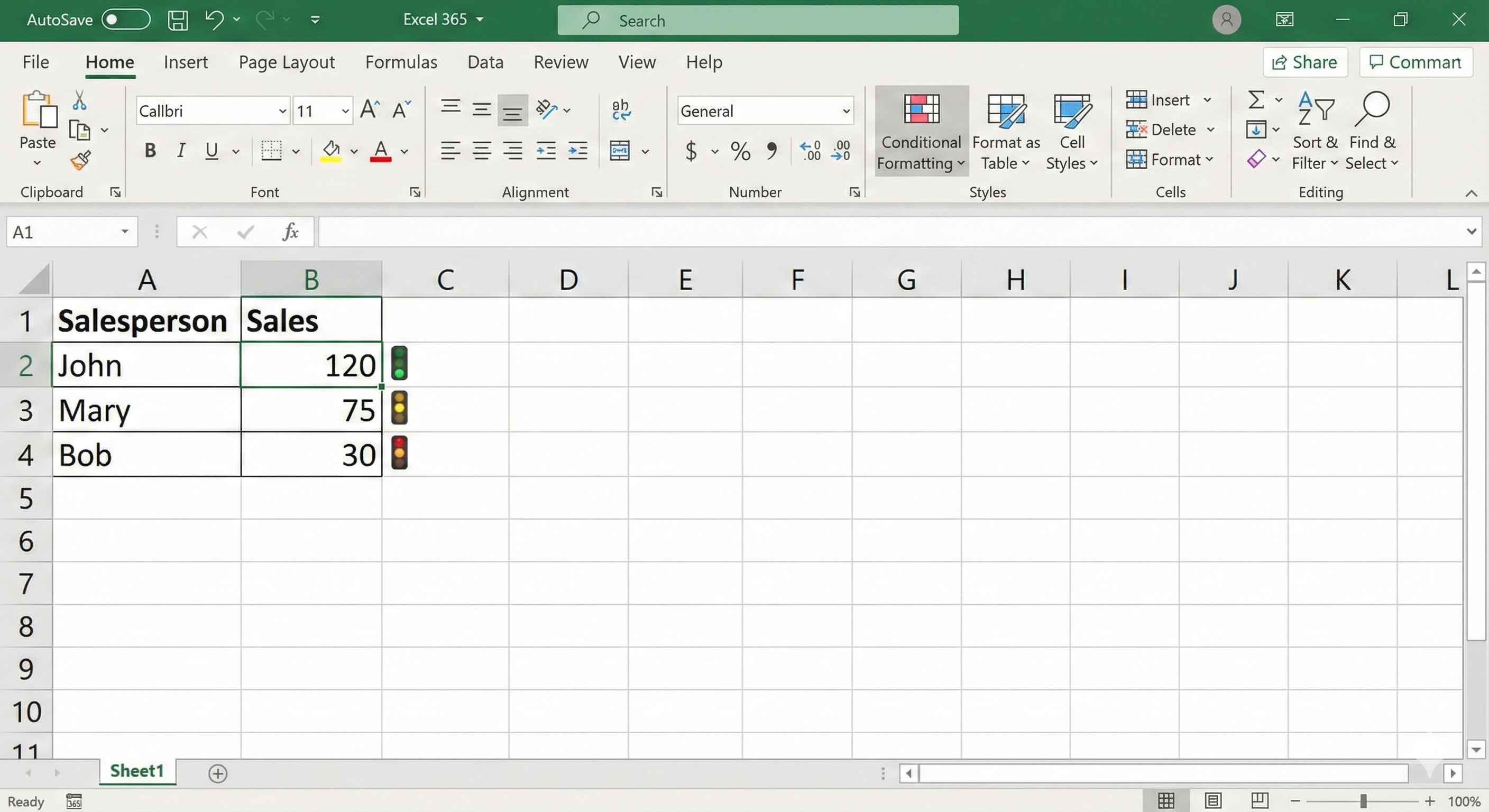
Example: Sales Performance
| Salesperson | Sales | Status |
|---|---|---|
| John | 120 | 🟢 (above 100) |
| Mary | 75 | 🟡 (50-100) |
| Bob | 30 | 🔴 (below 50) |
3 rows
How Excel Decides Icons
By default, Excel splits your data:
- Top 33% → Green
- Middle 33% → Yellow
- Bottom 33% → Red
You can change these rules!
Custom Icon Rules
- Home → Conditional Formatting
- Manage Rules → Select your rule → Edit Rule
- Change the values:
- Green: >= 80
- Yellow: >= 50
- Red: < 50
Show Only Icons
Want icons WITHOUT numbers?
- Edit the rule
- Check Show Icon Only
Great for dashboards!
Real Uses
Project Status:
- 🟢 On track
- 🟡 At risk
- 🔴 Delayed
Test Scores:
- ✅ Pass (>=40)
- ❌ Fail (<40)
Stock Prices:
- ⬆️ Up
- ⬇️ Down
Summary
- Icon Sets add visual indicators
- Find in Conditional Formatting → Icon Sets
- Traffic lights, arrows, stars, flags available
- Customize rules for your own thresholds
- Use "Show Icon Only" for clean dashboards