Text Functions
Learn how to work with text in Excel using simple functions
Text Functions in Excel
Sometimes you need to work with text, not just numbers. Excel has simple functions to help you clean, combine, and extract text.
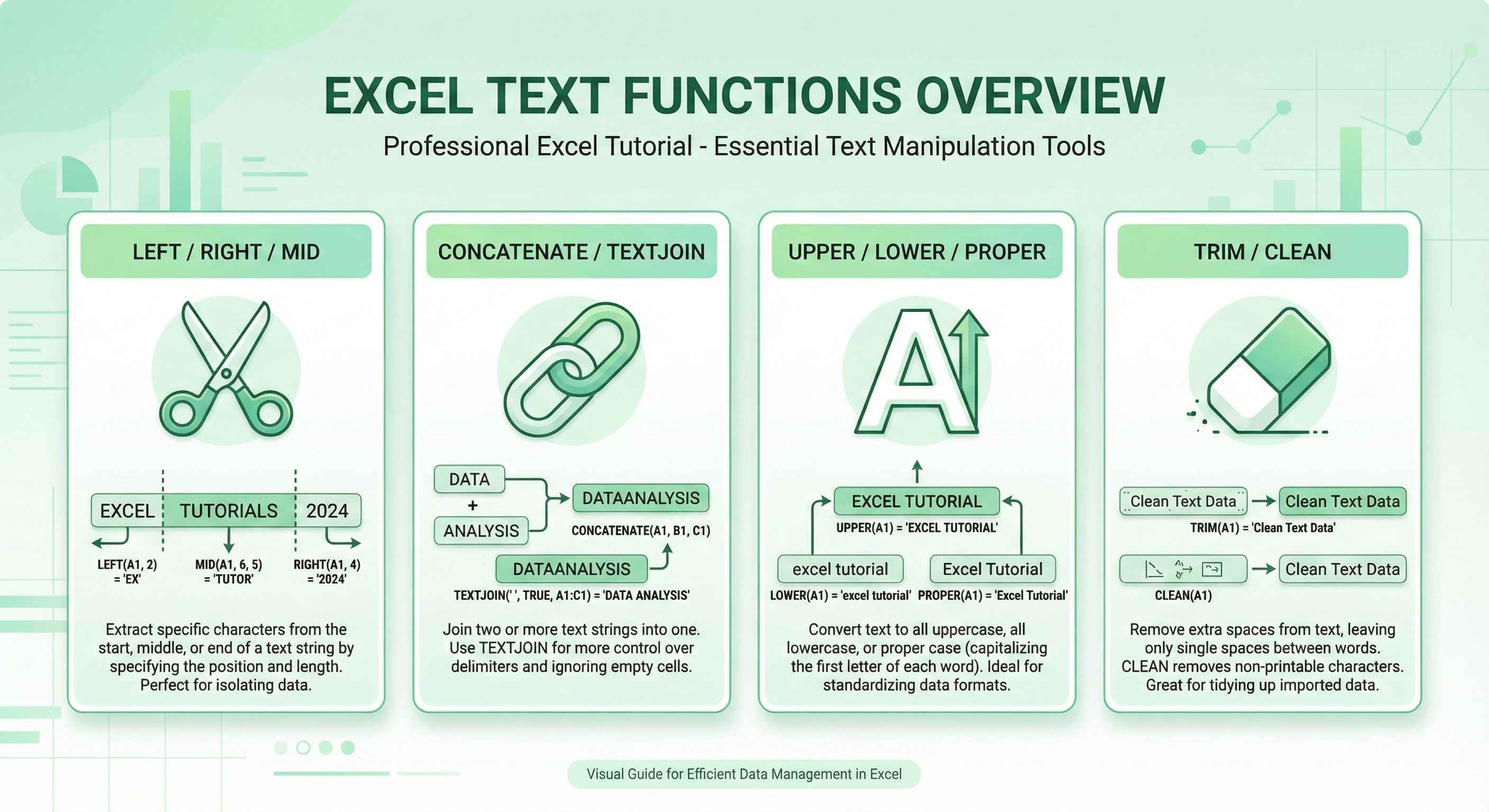
Why Do You Need Text Functions?
| Problem | Solution | Function |
|---|---|---|
| You have 'John Smith' but need just 'John' | Extract first name | LEFT |
| You have 'hello' but need 'HELLO' | Change to uppercase | UPPER |
| You have ' extra spaces ' | Remove extra spaces | TRIM |
| Combine First + Last name | Join text together | CONCATENATE |
1. CONCATENATE - Join Text Together
CONCATENATE means "join together". Think of it like gluing pieces of text.
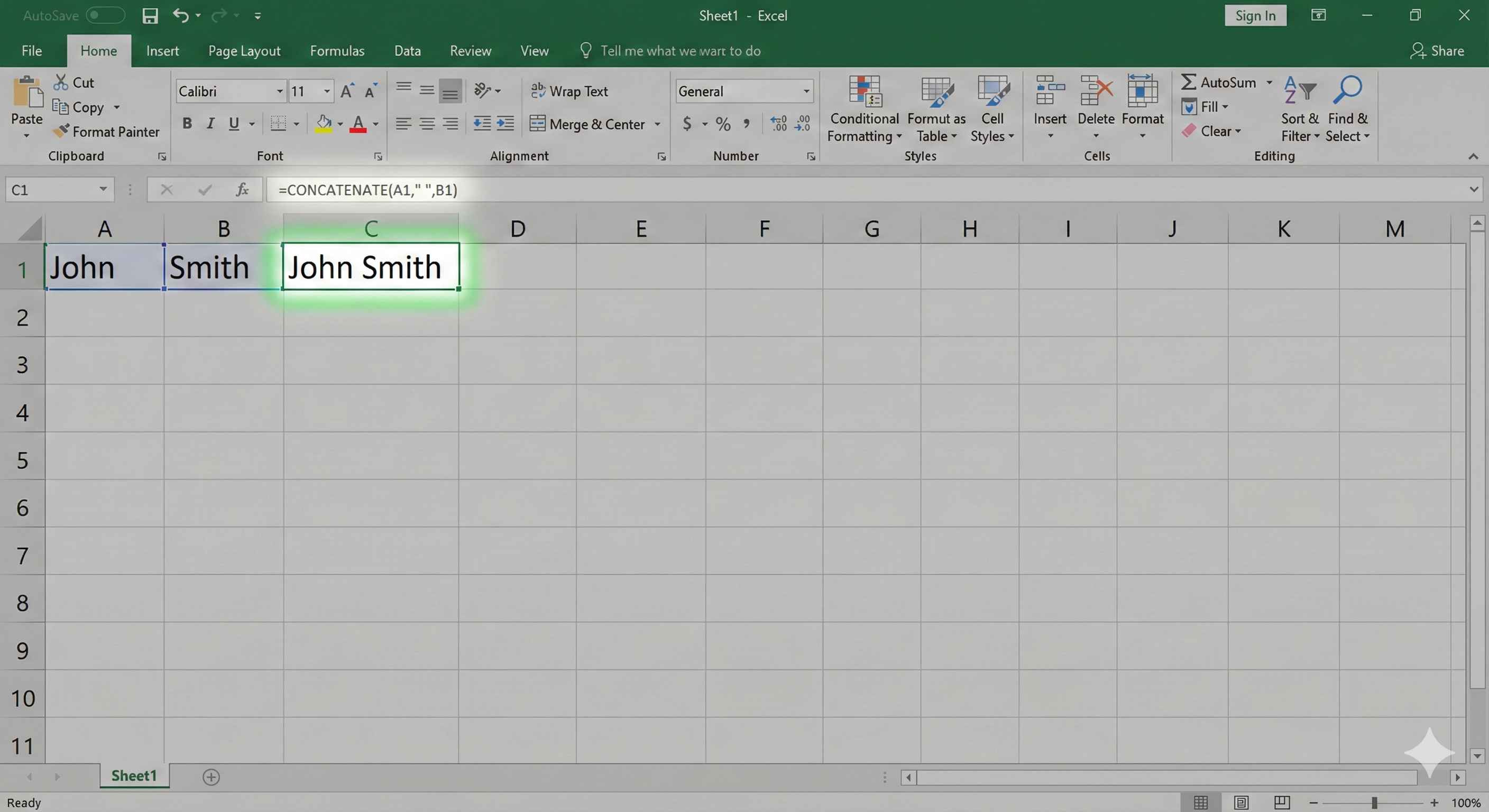
The Problem: You have First Name in A1 and Last Name in B1. You want Full Name in C1.
| A | B | C | |
|---|---|---|---|
| 1 | John | Smith | =CONCATENATE(A1, ' ', B1) |
| Result | John | Smith | John Smith |
Formula: =CONCATENATE(A1, " ", B1)
The " " adds a space between first and last name.
Easier Way: Use & Symbol
Instead of typing CONCATENATE, just use &:
=A1 & " " & B1 → Same result: "John Smith"
| Method | Formula | Result |
|---|---|---|
| CONCATENATE | =CONCATENATE(A1, ' ', B1) | John Smith |
| & Symbol | =A1 & ' ' & B1 | John Smith |
| CONCAT (newer) | =CONCAT(A1, ' ', B1) | John Smith |
Practice: Join First and Last Name
EasyJoin the first name in A1 with the last name in B1. Add a space between them using &.
2. LEFT - Get Characters from Left Side
LEFT extracts a specific number of characters from the beginning (left side) of text.
Formula: =LEFT(text, number_of_characters)
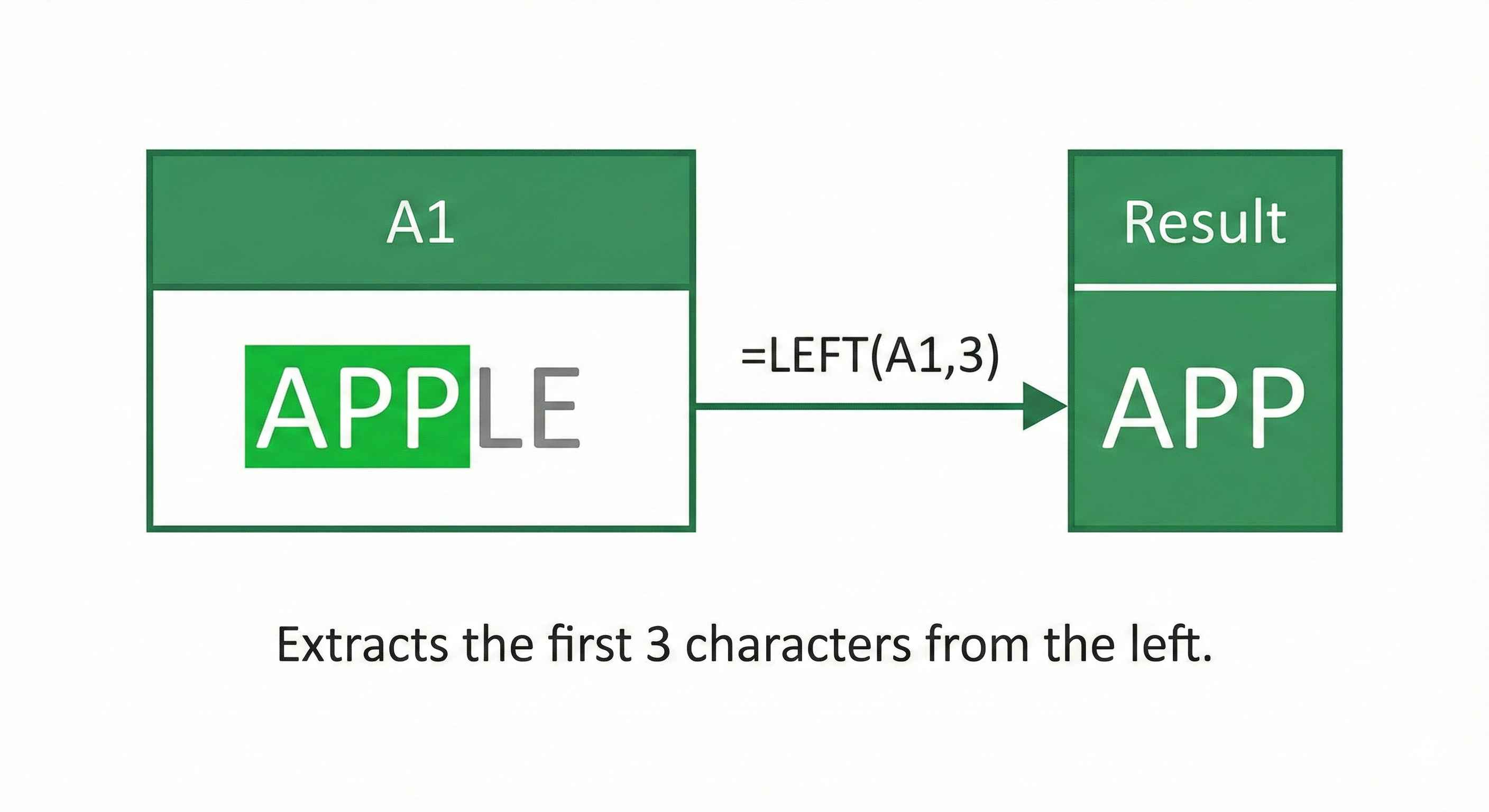
How LEFT Works
Think of the word "APPLE":
| Position | 1 | 2 | 3 | 4 | 5 |
|---|---|---|---|---|---|
| Character | A | P | P | L | E |
=LEFT("APPLE", 3) → Takes positions 1, 2, 3 → "APP"
More Examples
| Text in A1 | Formula | Result | Explanation |
|---|---|---|---|
| APPLE | =LEFT(A1, 3) | APP | First 3 characters |
| HELLO | =LEFT(A1, 2) | HE | First 2 characters |
| 12345 | =LEFT(A1, 1) | 1 | First character only |
| John Smith | =LEFT(A1, 4) | John | First 4 characters |
Practice: Get First 3 Characters
EasyGet the first 3 characters from the text in A1 using LEFT function.
3. RIGHT - Get Characters from Right Side
RIGHT extracts characters from the end (right side) of text.
Formula: =RIGHT(text, number_of_characters)
How RIGHT Works
Think of the word "APPLE":
| Position | 1 | 2 | 3 | 4 | 5 |
|---|---|---|---|---|---|
| Character | A | P | P | L | E |
=RIGHT("APPLE", 2) → Takes last 2 positions → "LE"
More Examples
| Text in A1 | Formula | Result | Explanation |
|---|---|---|---|
| APPLE | =RIGHT(A1, 2) | LE | Last 2 characters |
| HELLO | =RIGHT(A1, 3) | LLO | Last 3 characters |
| 12345 | =RIGHT(A1, 2) | 45 | Last 2 characters |
| [email protected] | =RIGHT(A1, 3) | com | Last 3 characters |
Practice: Get Last 2 Characters
EasyGet the last 2 characters from the text in A1 using RIGHT function.
4. MID - Get Characters from Middle
MID extracts characters from anywhere in the text - beginning, middle, or end.
Formula: =MID(text, start_position, number_of_characters)
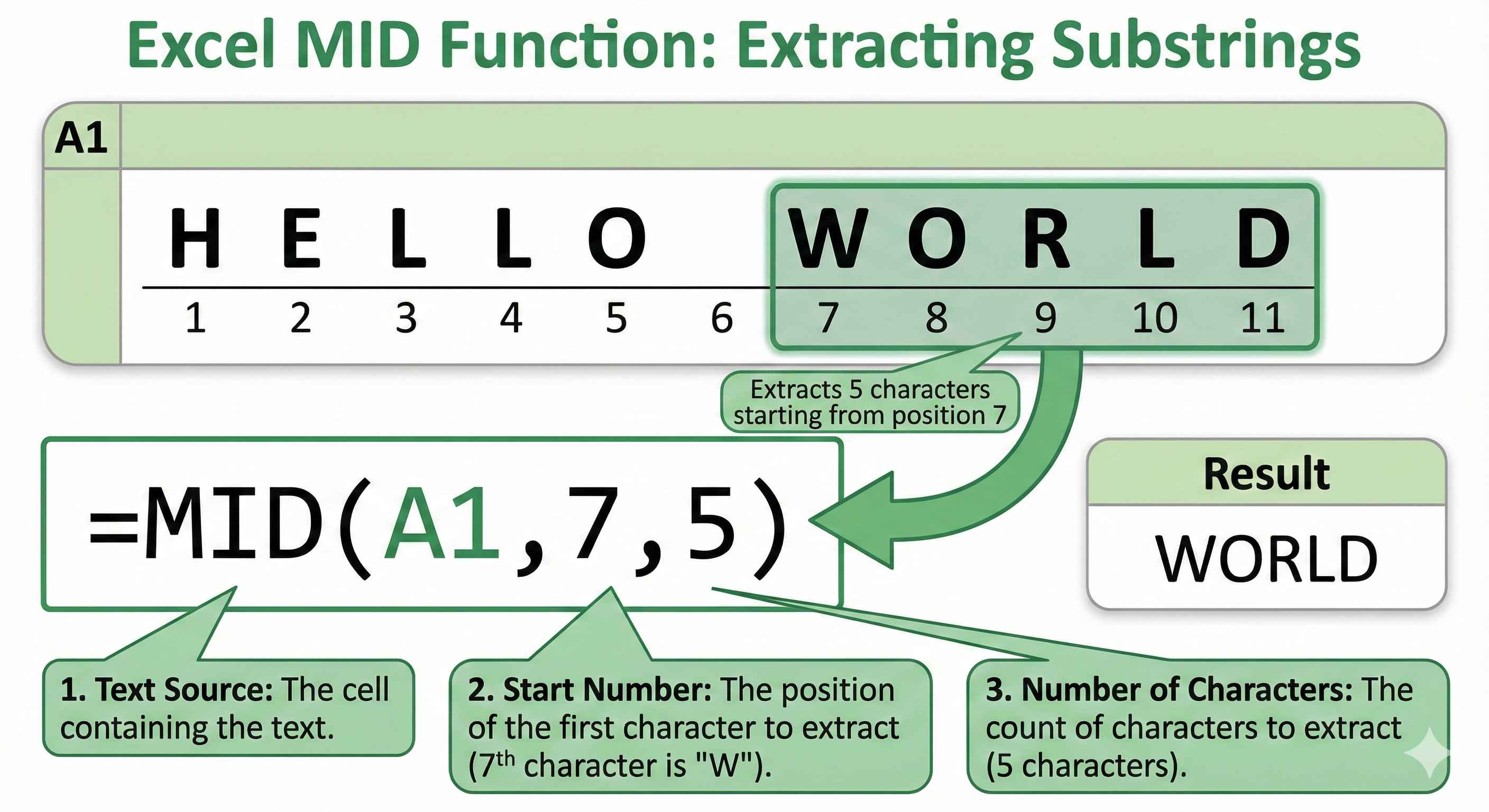
How MID Works
| Part | What It Means |
|---|---|
| text | The cell or text to extract from |
| start_position | Where to start (1 = first character) |
| number_of_characters | How many characters to extract |
Visual Example
Text: "HELLO WORLD"
| Position | 1 | 2 | 3 | 4 | 5 | 6 | 7 | 8 | 9 | 10 | 11 |
|---|---|---|---|---|---|---|---|---|---|---|---|
| Character | H | E | L | L | O | W | O | R | L | D |
=MID("HELLO WORLD", 7, 5) → Starts at 7, takes 5 → "WORLD"
More Examples
| Text in A1 | Formula | Result | Explanation |
|---|---|---|---|
| APPLE | =MID(A1, 2, 3) | PPL | Start at 2, take 3 |
| HELLO | =MID(A1, 2, 2) | EL | Start at 2, take 2 |
| 123-456-7890 | =MID(A1, 5, 3) | 456 | Extract middle part |
| ABC123XYZ | =MID(A1, 4, 3) | 123 | Get numbers from middle |
5. LEN - Count Characters
LEN tells you how many characters are in text (including spaces!).
Formula: =LEN(text)
| Text in A1 | Formula | Result | Note |
|---|---|---|---|
| APPLE | =LEN(A1) | 5 | 5 letters |
| Hello World | =LEN(A1) | 11 | 10 letters + 1 space = 11 |
| 123 | =LEN(A1) | 3 | 3 digits |
| A B C | =LEN(A1) | 5 | 3 letters + 2 spaces = 5 |
Important: Spaces count as characters!
Practical Use: Validate Data Length
Check if phone number has 10 digits:
=IF(LEN(A1)=10, "Valid", "Invalid")
6. UPPER, LOWER, PROPER - Change Text Case
These functions change how text looks - uppercase, lowercase, or title case.
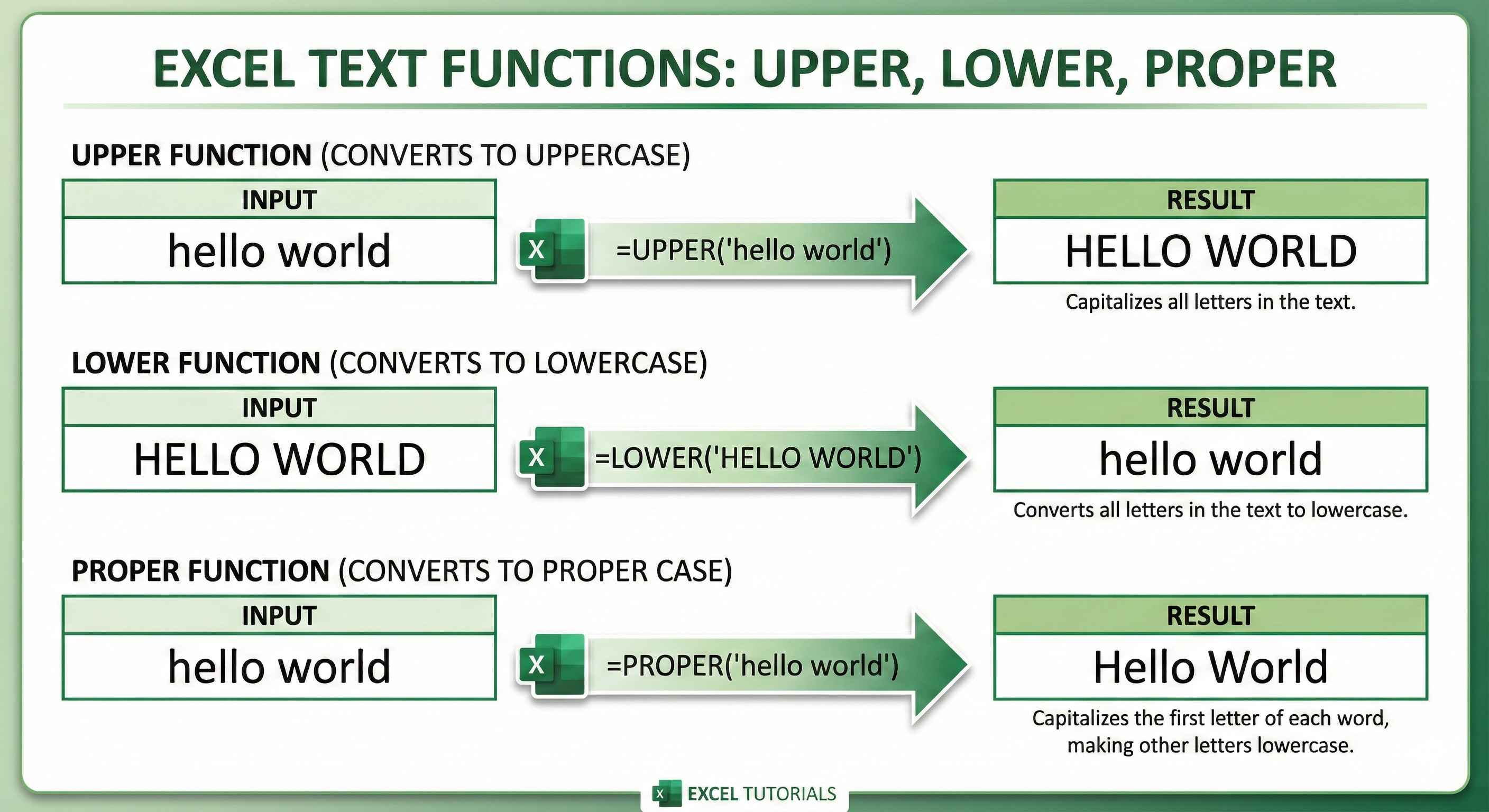
| Function | What It Does | Formula |
|---|---|---|
| UPPER | Makes ALL CAPS | =UPPER(A1) |
| LOWER | Makes all lowercase | =LOWER(A1) |
| PROPER | Makes Title Case (First Letter Capital) | =PROPER(A1) |
Comparison Table
| Original Text | UPPER | LOWER | PROPER |
|---|---|---|---|
| hello world | HELLO WORLD | hello world | Hello World |
| JOHN SMITH | JOHN SMITH | john smith | John Smith |
| mIxEd CaSe | MIXED CASE | mixed case | Mixed Case |
| NEW YORK CITY | NEW YORK CITY | new york city | New York City |
Practice: Convert to Uppercase
EasyConvert the text in A1 to all uppercase letters.
7. TRIM - Remove Extra Spaces
TRIM removes:
- Spaces at the beginning
- Spaces at the end
- Extra spaces between words (keeps only 1 space)
Formula: =TRIM(text)
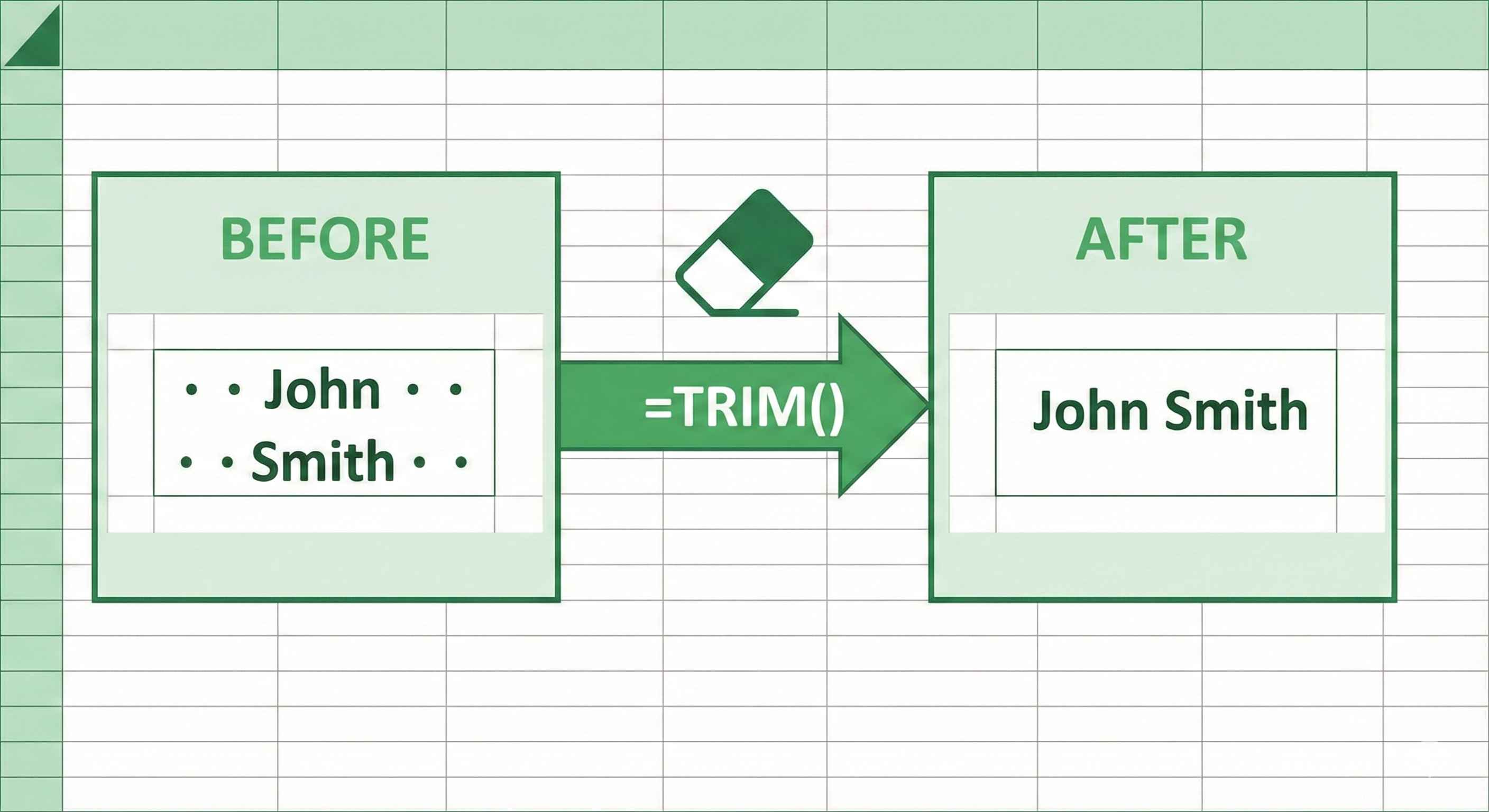
Before and After TRIM
| Before (Raw Data) | After TRIM | Spaces Removed |
|---|---|---|
| Hello | Hello | Leading & trailing |
| Hello World | Hello World | Extra spaces in middle |
| John Smith | John Smith | All extra spaces |
Why is TRIM important?
When you copy data from websites or other sources, it often has hidden spaces. These spaces can cause:
- VLOOKUP failures
- Wrong calculations
- Duplicate-looking entries
Real World Example: Clean Messy Customer Data
You receive this messy data from a form:
| A (Raw Input) | B (Cleaned Output) | Formula Used |
|---|---|---|
| john SMITH | John Smith | =PROPER(TRIM(A1)) |
| MARY jones | Mary Jones | =PROPER(TRIM(A2)) |
| bob WILSON | Bob Wilson | =PROPER(TRIM(A3)) |
The Magic Formula: =PROPER(TRIM(A1))
- TRIM removes extra spaces
- PROPER capitalizes first letters
Quick Reference Card
| Function | Purpose | Syntax | Example Result |
|---|---|---|---|
| CONCATENATE | Join text | =CONCATENATE(A1,B1) | JohnSmith |
| LEFT | Get first X chars | =LEFT(A1,3) | Joh |
| RIGHT | Get last X chars | =RIGHT(A1,3) | ith |
| MID | Get middle chars | =MID(A1,2,3) | ohn |
| LEN | Count characters | =LEN(A1) | 9 |
| UPPER | ALL CAPS | =UPPER(A1) | JOHNSMITH |
| LOWER | all lowercase | =LOWER(A1) | johnsmith |
| PROPER | Title Case | =PROPER(A1) | Johnsmith |
| TRIM | Remove spaces | =TRIM(A1) | John Smith |
Common Mistakes to Avoid
| Mistake | Wrong | Correct |
|---|---|---|
| Forgetting quotes for space | =A1 & & B1 | =A1 & ' ' & B1 |
| MID position starts at 0 | =MID(A1,0,3) | =MID(A1,1,3) |
| Forgetting spaces in LEN | Expecting 10 for Hello World | Its 11 (space counts!) |
| Using wrong function | LEFT for last chars | Use RIGHT for last chars |
Summary
Text functions help you:
- Combine text (CONCATENATE, &)
- Extract parts (LEFT, RIGHT, MID)
- Count characters (LEN)
- Change case (UPPER, LOWER, PROPER)
- Clean data (TRIM)
Pro Tip: Combine functions for powerful results!
- Clean names:
=PROPER(TRIM(A1)) - Get domain from email:
=RIGHT(A1, LEN(A1)-FIND("@",A1))
Practice these functions - they are essential for data cleaning!