Your First Excel Formula
Learn to write your very first formula in Excel
Your First Excel Formula
Think of Excel as a super-smart calculator. Instead of pressing buttons, you type instructions. These instructions are called formulas.
The One Rule You Must Remember
Every formula starts with the equals sign (=).
Without it, Excel thinks you are just typing text.
Example:
- Type
5+3in a cell. Excel shows: 5+3 (just text) - Type
=5+3in a cell. Excel shows: 8 (it calculated!)
Try it yourself. Open Excel, click any cell, and type =5+3. Press Enter. You should see 8.
Why Use Cell Names Instead of Numbers?
Here is the magic of Excel.
Instead of typing numbers directly, you can tell Excel to look at other cells.
Example:
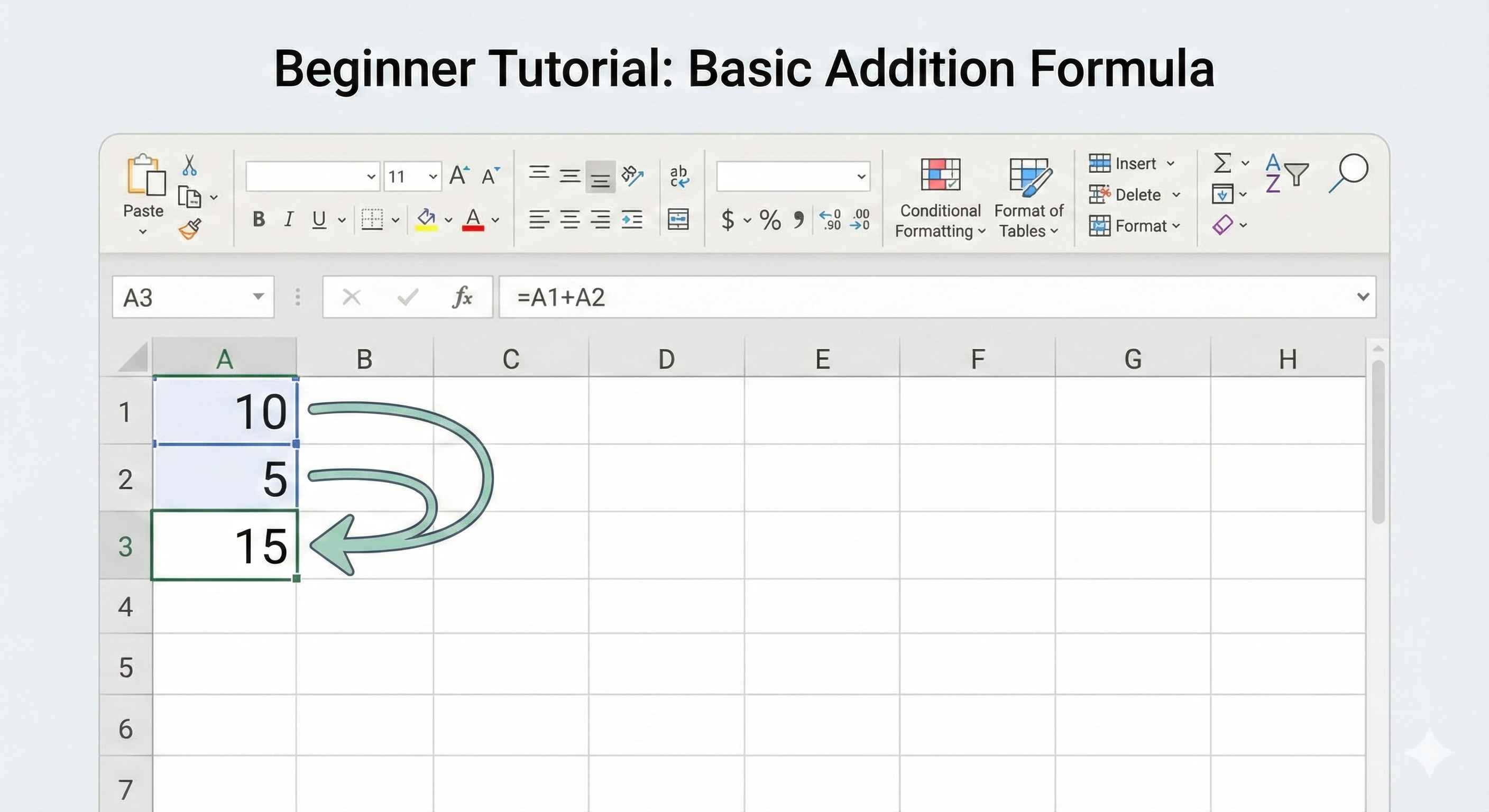
- Put 10 in cell A1
- Put 5 in cell A2
- In cell A3, type:
=A1+A2 - Result: 15
Now change A1 to 20. Look at A3. It automatically updates to 25.
This is powerful. You change one number, and everything updates.
The 4 Basic Math Operations
Excel uses these symbols:
| Operation | Symbol | Example | Result |
|---|---|---|---|
| Add | + | =5+3 | 8 |
| Subtract | - | =10-4 | 6 |
| Multiply | * | =6*7 | 42 |
| Divide | / | =20/5 | 4 |
Practice: Basic Math
EasyMultiply A1 by A2. Use the multiplication operator (*).
Your First Function: SUM
Typing =A1+A2+A3+A4+A5 is tiring.
Excel has a shortcut called SUM.
Instead of: =A1+A2+A3+A4+A5
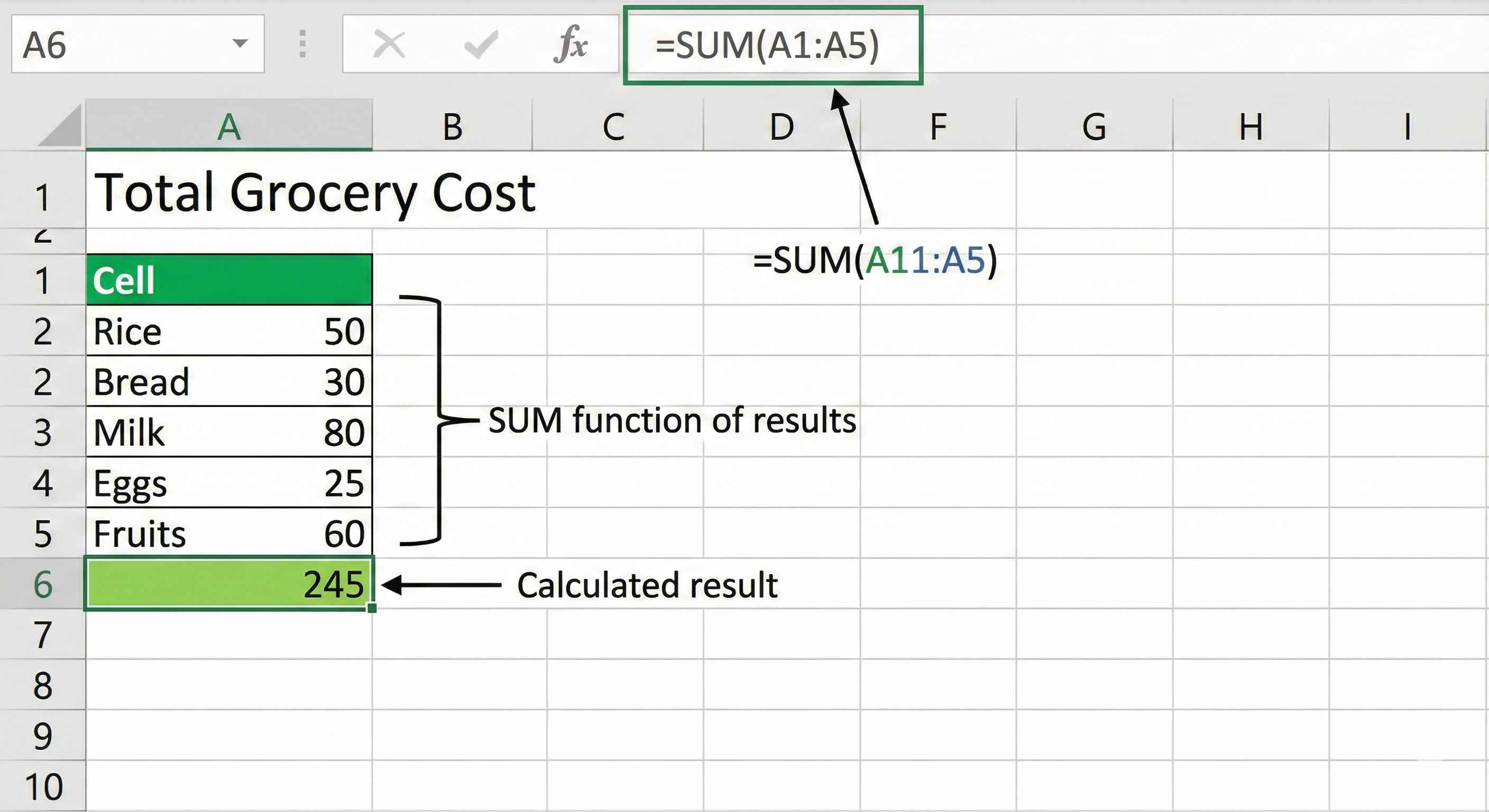
Just type: =SUM(A1:A5)
The colon (:) means "from A1 to A5".
Real-life example: You have grocery prices in cells A1 to A5:
- A1: 50 (Rice)
- A2: 30 (Bread)
- A3: 80 (Milk)
- A4: 25 (Eggs)
- A5: 60 (Fruits)
Type =SUM(A1:A5) to get total: 245
Practice: SUM Function
EasyCalculate the total of sales from A1 to A5 using SUM.
Finding the Average: AVERAGE
Want to know the average? Use AVERAGE.
Example: Your test scores are 85, 90, 78, 92 in cells B1 to B4.
Type: =AVERAGE(B1:B4)
Result: 86.25
Practice: AVERAGE Function
EasyFind the average of test scores in B1 to B4.
Counting Numbers: COUNT
Want to count how many numbers you have? Use COUNT.
Example: Cells A1 to A6 contain: 10, 20, 30, "Hello", 40, 50
Type: =COUNT(A1:A6)
Result: 5 (it ignores "Hello" because it is text)
Practice: COUNT Function
EasyCount how many numbers are in range A1 to A6.
Finding Highest and Lowest: MAX and MIN
MAX finds the biggest number. MIN finds the smallest number.
Example: Temperatures this week: 72, 85, 90, 68, 78
=MAX(C1:C5)gives 90 (hottest day)=MIN(C1:C5)gives 68 (coolest day)
Practice: MAX Function
EasyFind the highest temperature in cells C1 to C5 using MAX.
Common Mistakes (And How to Fix Them)
Mistake 1: Forgot the = sign You typed: SUM(A1:A5) Excel shows: SUM(A1:A5) as text Fix: Type =SUM(A1:A5)
Mistake 2: Spelled the function wrong You typed: =SUMM(A1:A5) Excel shows: #NAME? Fix: Check spelling. It is SUM, not SUMM.
Mistake 3: Divided by zero You typed: =10/0 Excel shows: #DIV/0! Fix: You cannot divide by zero.
Quick Summary
- Every formula starts with =
- Use cell names (A1, B2) instead of typing numbers
- SUM adds numbers: =SUM(A1:A5)
- AVERAGE finds average: =AVERAGE(A1:A5)
- COUNT counts numbers: =COUNT(A1:A5)
- MAX finds highest: =MAX(A1:A5)
- MIN finds lowest: =MIN(A1:A5)
You did it. You just learned formulas. In the next lesson, we will learn about cell references.